Editor
URLATE includes a built-in editor that lets you create and modify patterns.
This guide will walk you through how to use it.
It may seem a bit complicated at first, but if you follow the instructions step by step, you'll get the hang of it.
If you have any questions, feel free to open an issue.
Home Screen
When you first open the editor, you'll see the home screen.
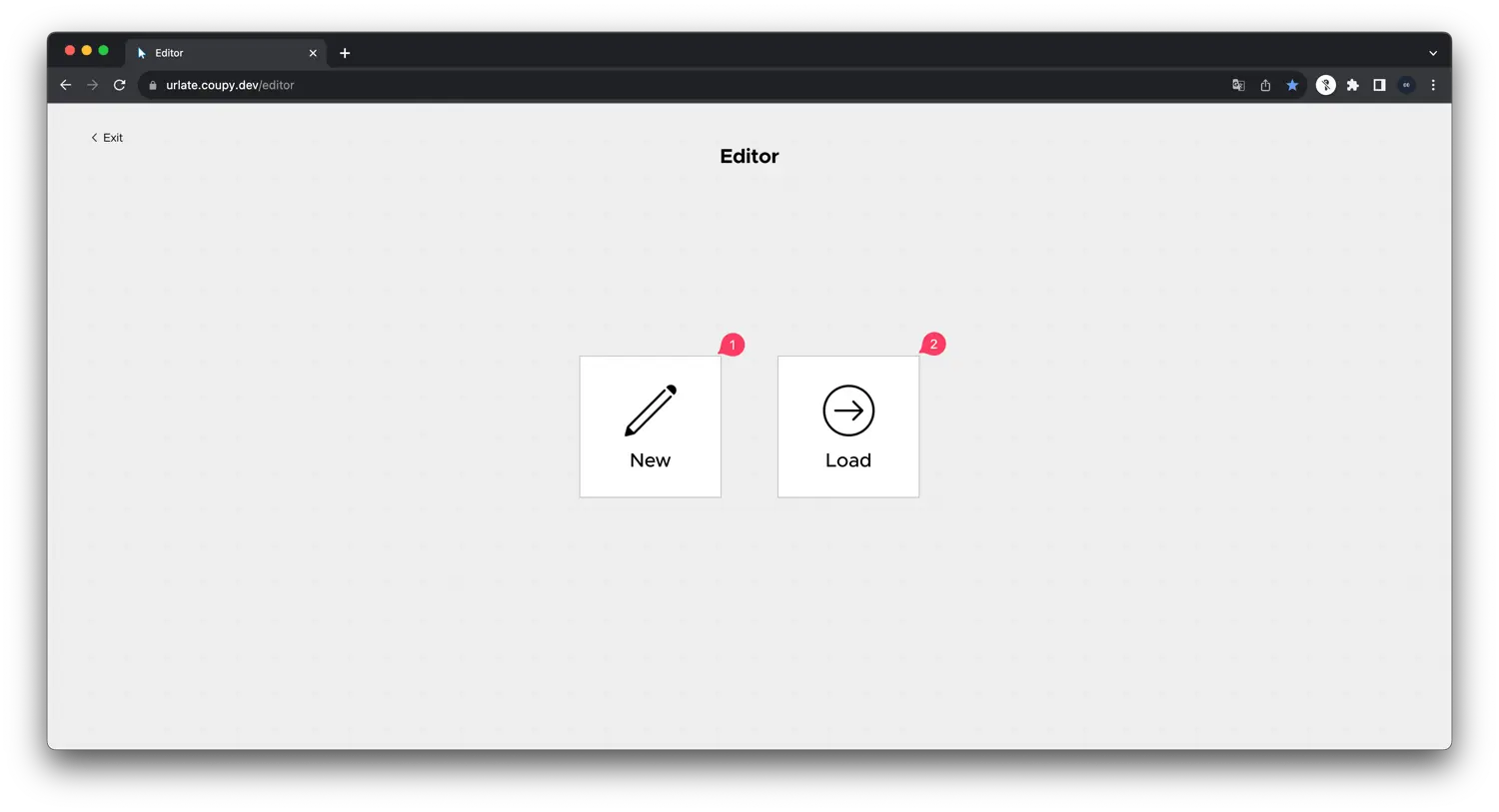
- New: Create a new pattern.
- Load: Open an existing pattern file (.json).
Creating a New Pattern
Click the New button to open the song selection screen.
Choose the song you want to use for your pattern.
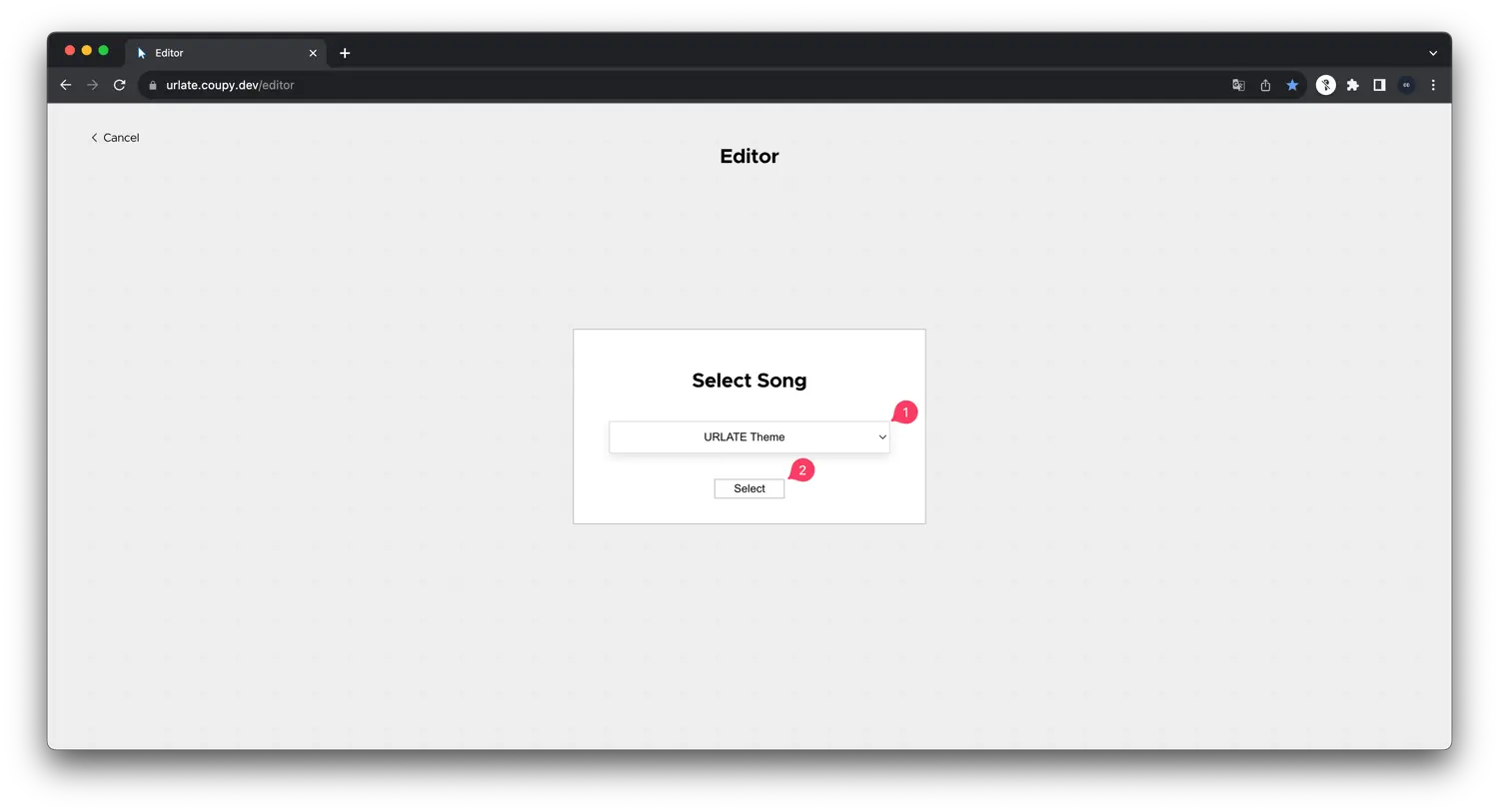
- Select a song from the list.
- Click the
Selectbutton.
Loading an Existing Pattern
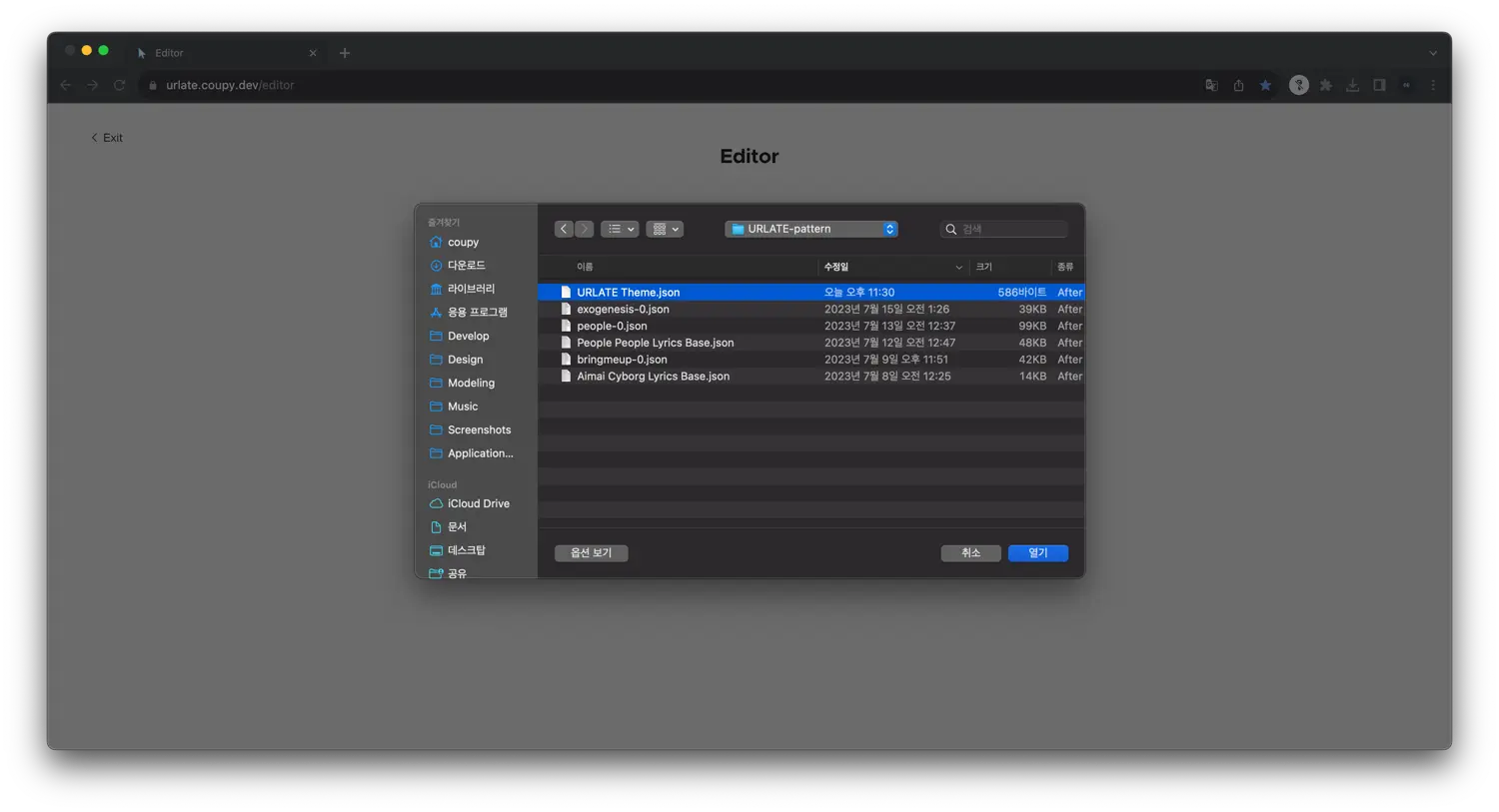
Click the Load button to open the file selection dialog.
Editor Screen
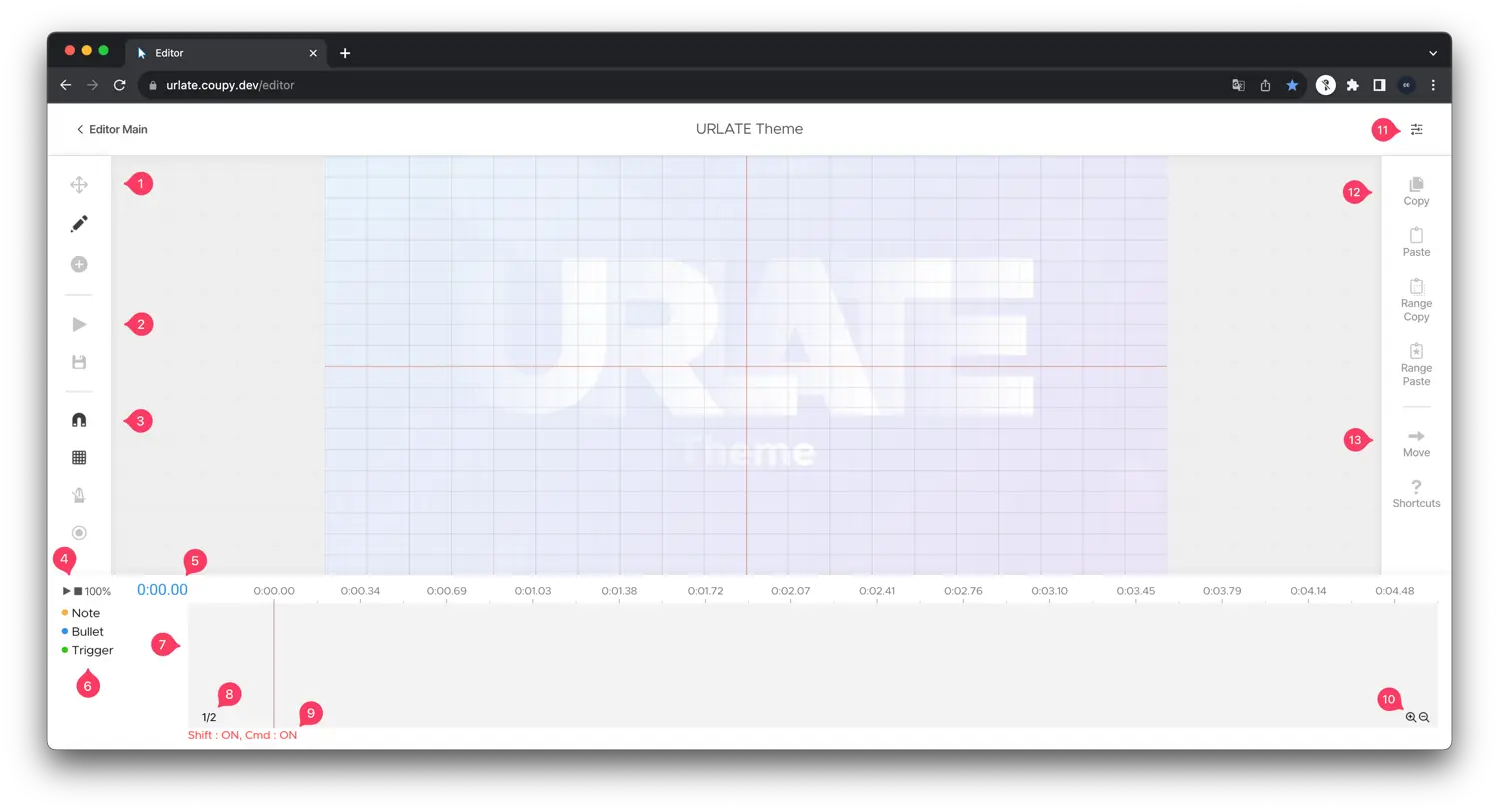
This is the main editor screen where you can create or modify patterns.
It includes two toolbars, a timeline, a settings panel, and a preview area.
-
Essential Tools
- Move: Click and drag to move an object. You can also adjust its timing in the timeline.
- Edit: Click to edit the selected object. The settings panel will update accordingly.
- Add: Click to add a new object. The new object will be automatically selected.
-
Test / Save
- Test: Redirects to the test page. The current pattern is saved in local storage, but it's recommended to export it as a file.
- Save: Exports the pattern as a
.jsonfile.
-
Playback Controls
- Play: Starts preview playback.
- Stop: Stops playback.
- Rate: Adjusts playback speed (default:
100%).
-
Time Indicator: Displays the current preview time. Click to copy it to clipboard.
-
Elements Viewer: Shows stacked objects if multiple exist at the same time.
-
Timeline: Displays added objects. Drag to change their timing.
-
Beat Selector: Click to choose how beats are divided.
-
Key Indicator: Displays currently pressed keys (
Shift,Ctrl,⌘). -
Zoom: Zooms in or out of the timeline.
-
Settings Panel: Toggles the settings panel.
-
Move (Time): Move the timeline by specifying a time value.
Pattern Settings
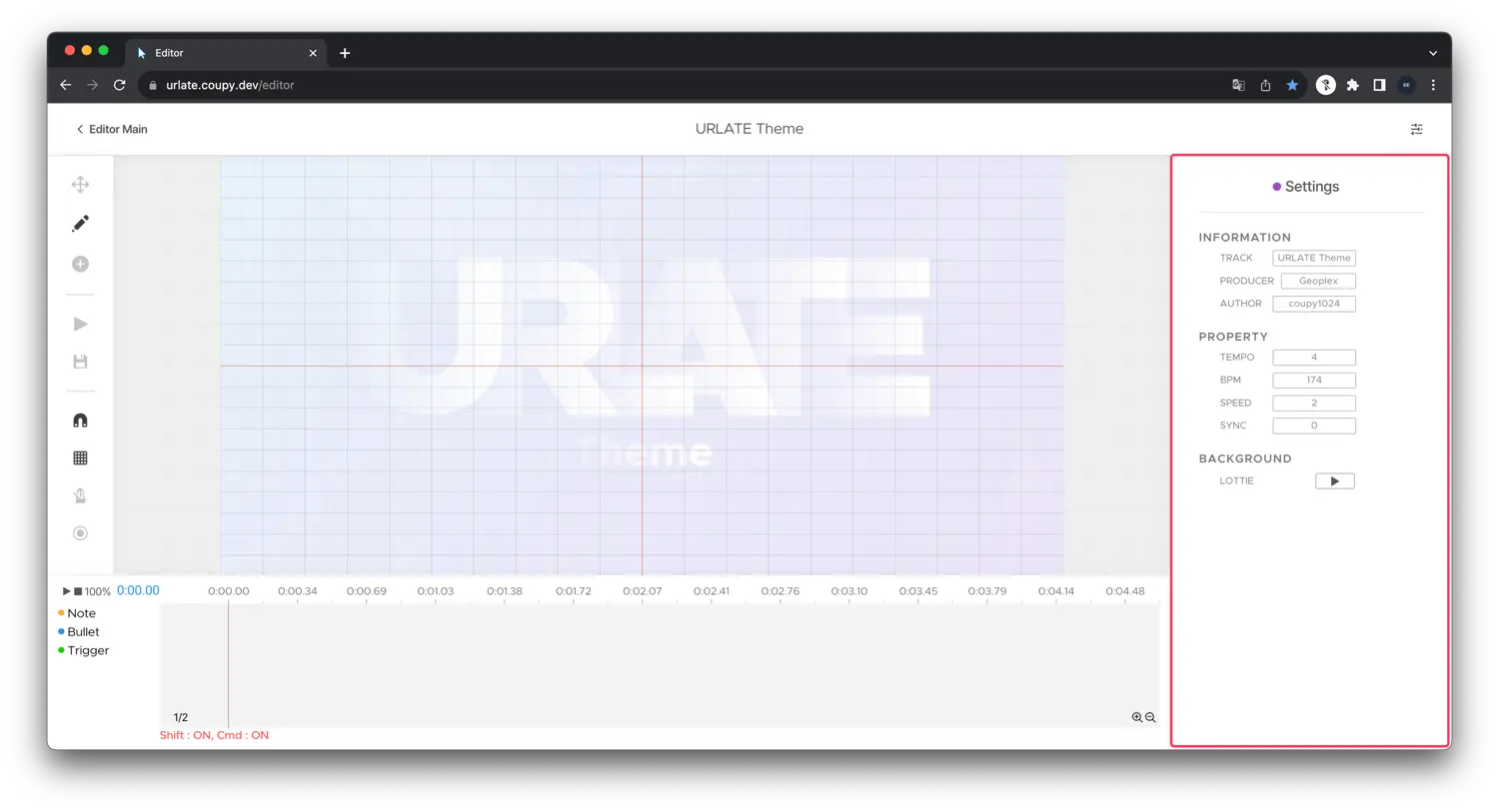
Click the Settings button with no object selected to open global pattern settings.
-
INFORMATION: Basic pattern metadata. If it's a collaborative work, update the
AUTHORfield. -
PROPERTY
- BPM: Sets the initial beats per minute.
- SPEED: Controls how fast objects move (range:
1–5). - SYNC: Adjusts offset in milliseconds for audio syncing.
Note Settings
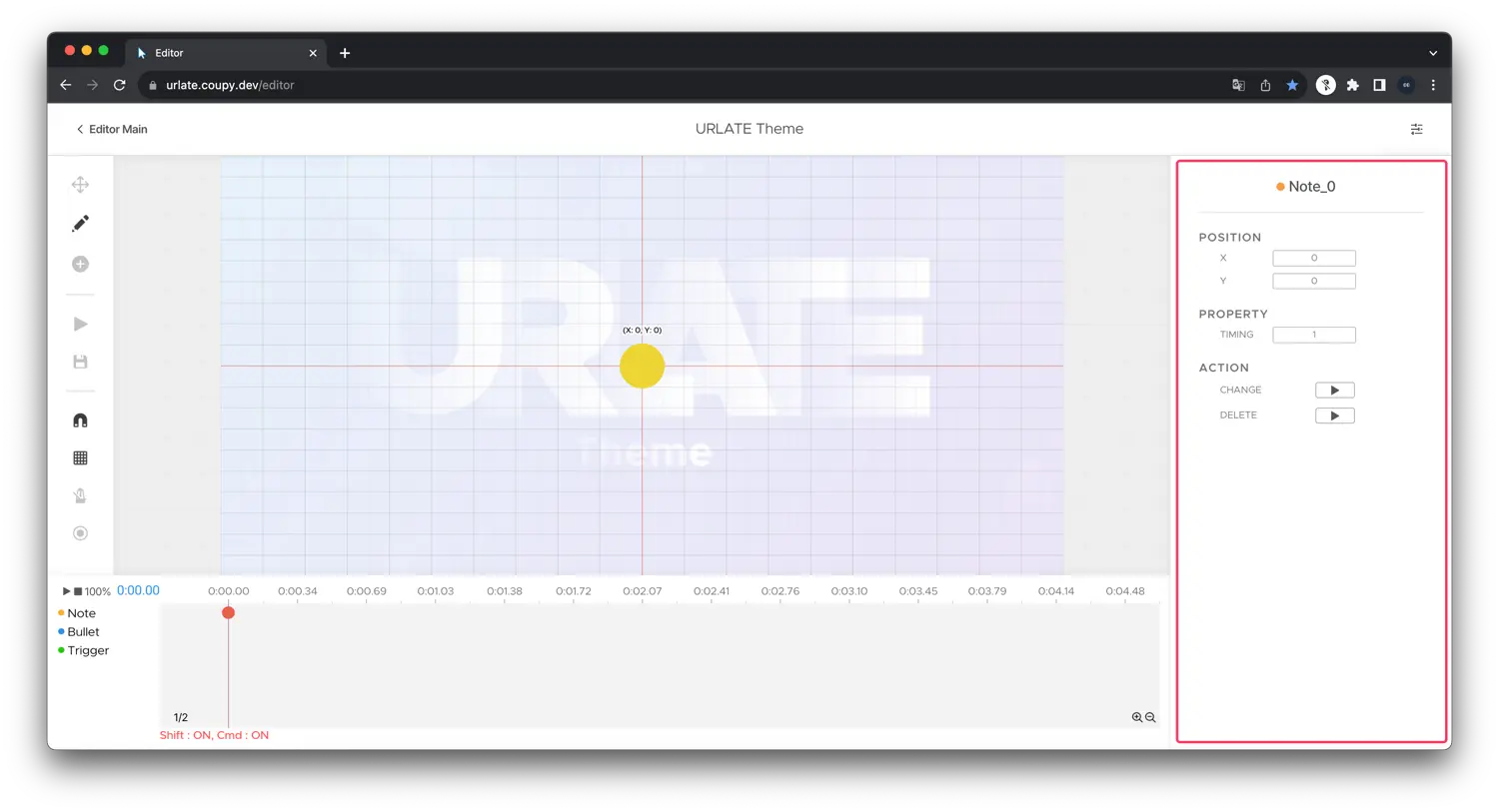
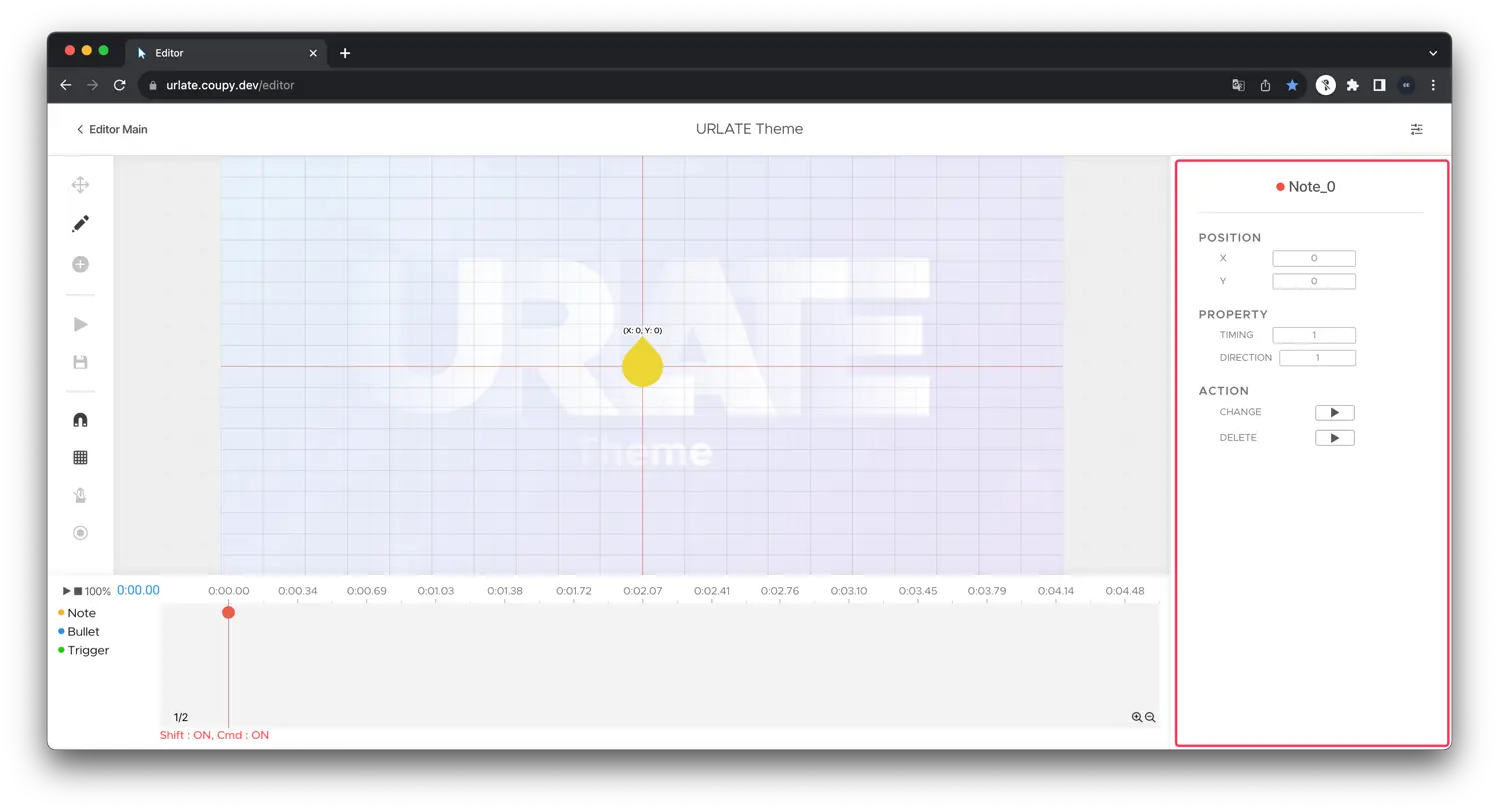
Add notes using the Add tool and clicking the preview. Selecting a note updates the settings panel.
Click Note
Wheel Note
Hold Note
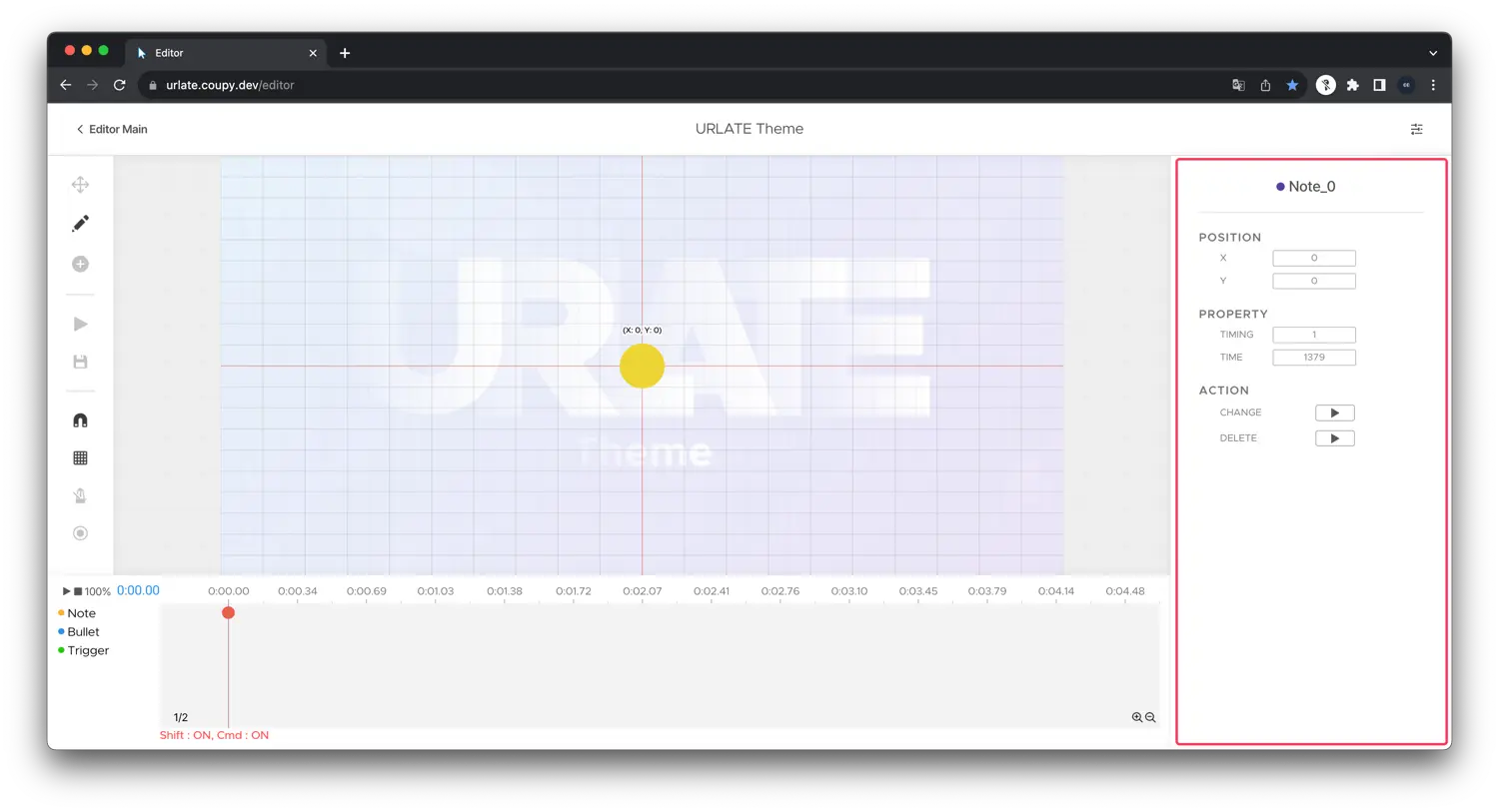
All notes share these settings:
-
POSITION
- X / Y: Note position (range:
-100to100).
- X / Y: Note position (range:
-
PROPERTY
- TIMING: Beat count from the start of the song.
- DIRECTION (Wheel note): Either
-1or1. - TIME (Hold note): Beat duration from note start.
-
ACTION
- CHANGE: Change note type.
- DELETE: Remove the note.
Bullet Settings
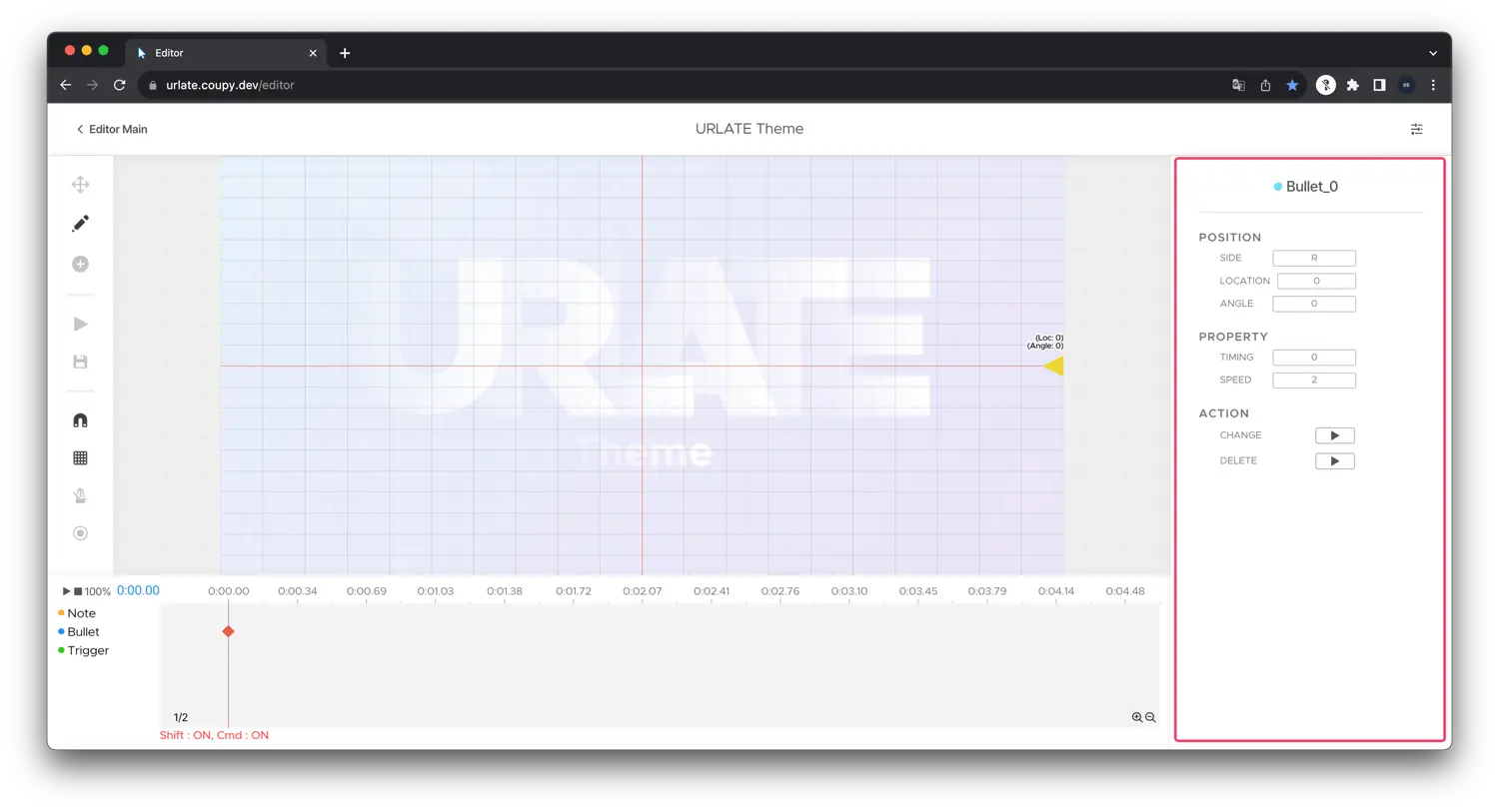
Add bullets using the Add tool by clicking the side of the preview. Select or add a bullet to see its settings.
Pointed Bullet
-
POSITION
- SIDE: Which side the bullet appears from.
- LOCATION: Position along that side (0–100).
-
PROPERTY
- TIMING: Beat count from the start of the song.
- SPEED: Bullet speed.
-
ACTION
- CHANGE: Change bullet type.
- DELETE: Delete the bullet.
Trigger Settings
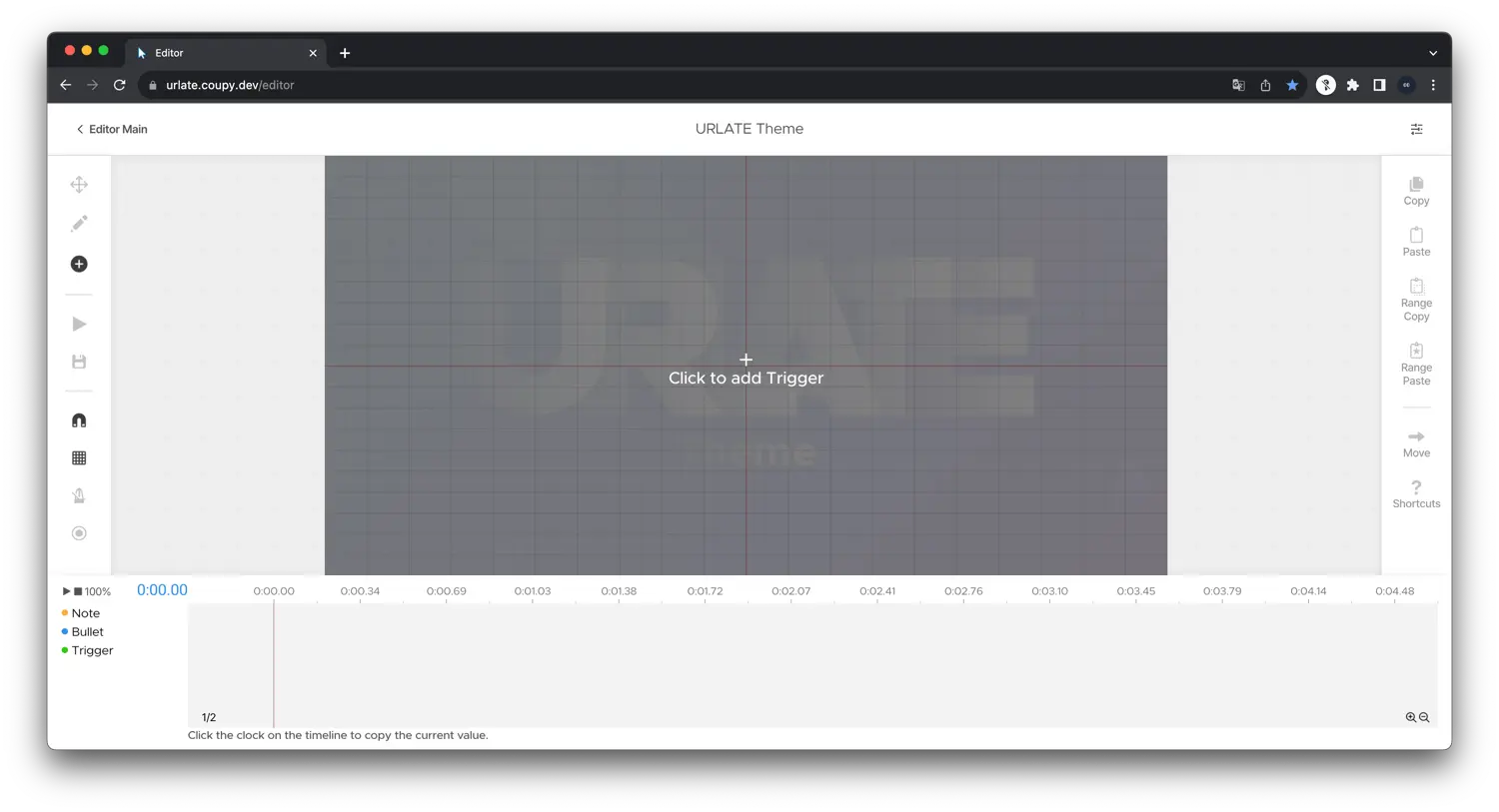
Add triggers by clicking the outer area of the preview using the Add tool. Each trigger type can be selected after creation.
Destroy Trigger
Destroys a specific bullet.
You should set the TARGET NUM value to determine which bullet will be destroyed.
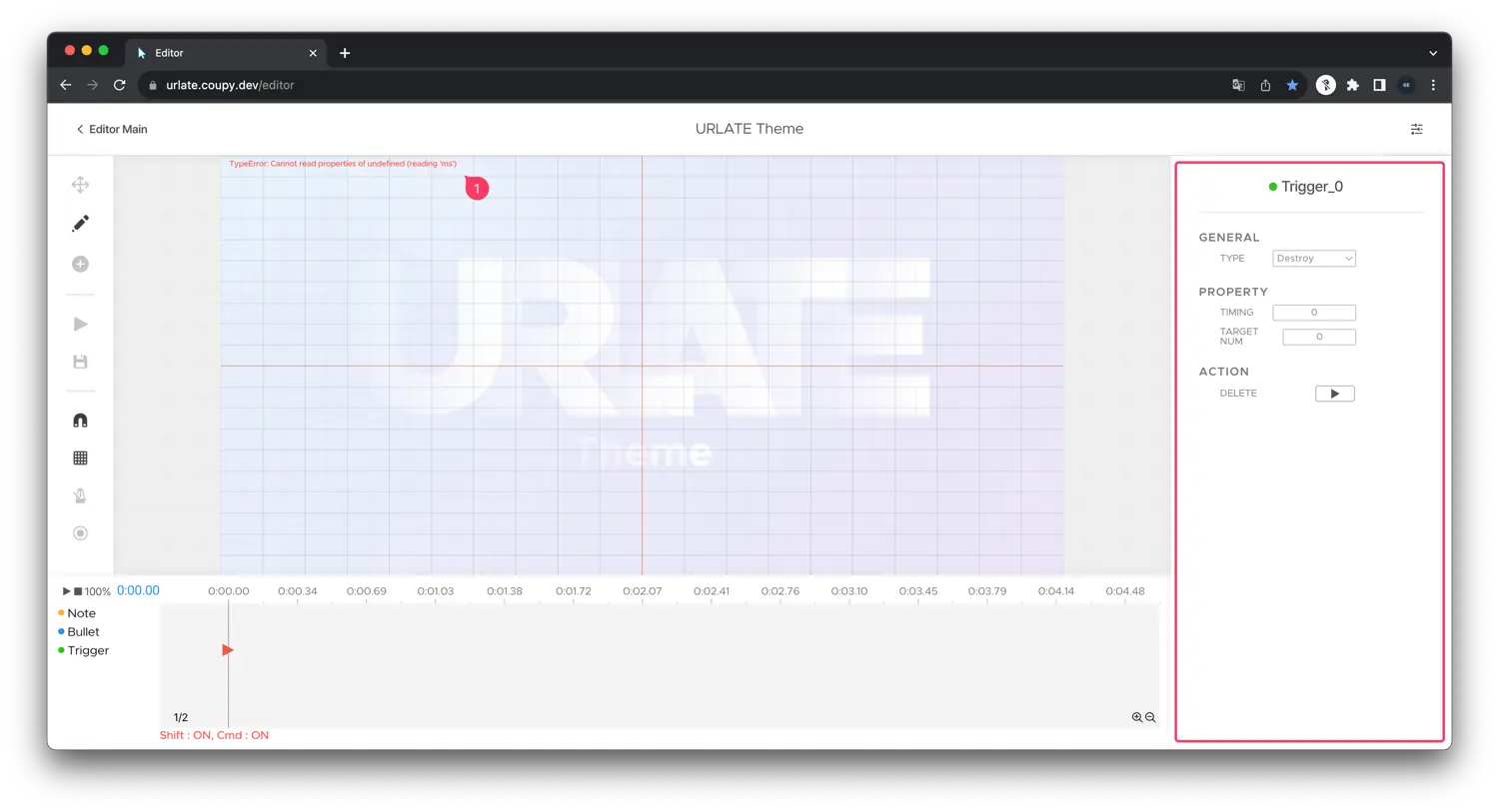
- This error message occurs because there is currently no
bullet_0pointed to bydestroy trigger.
Destroy All Trigger
Destroys all bullets.
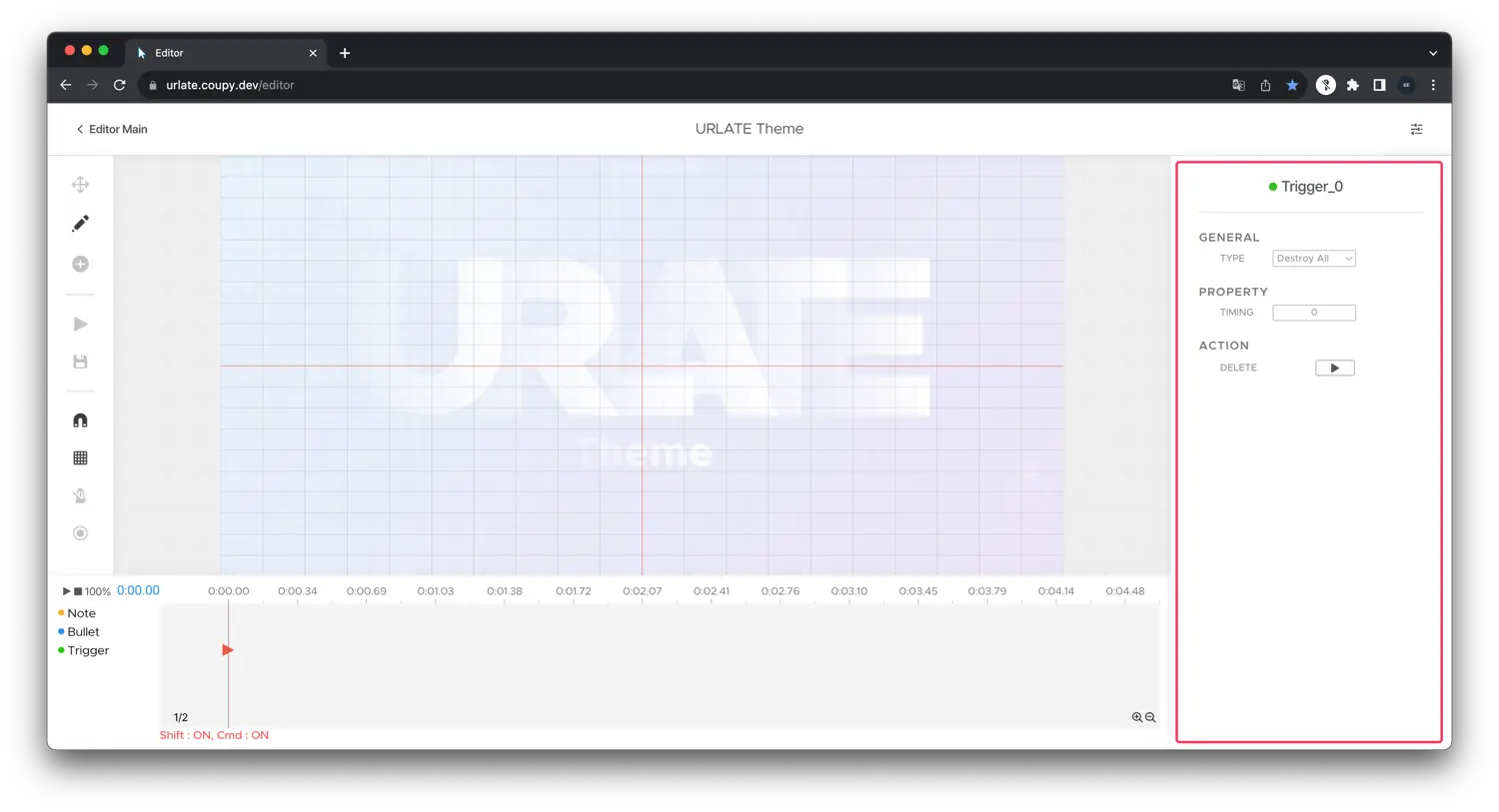
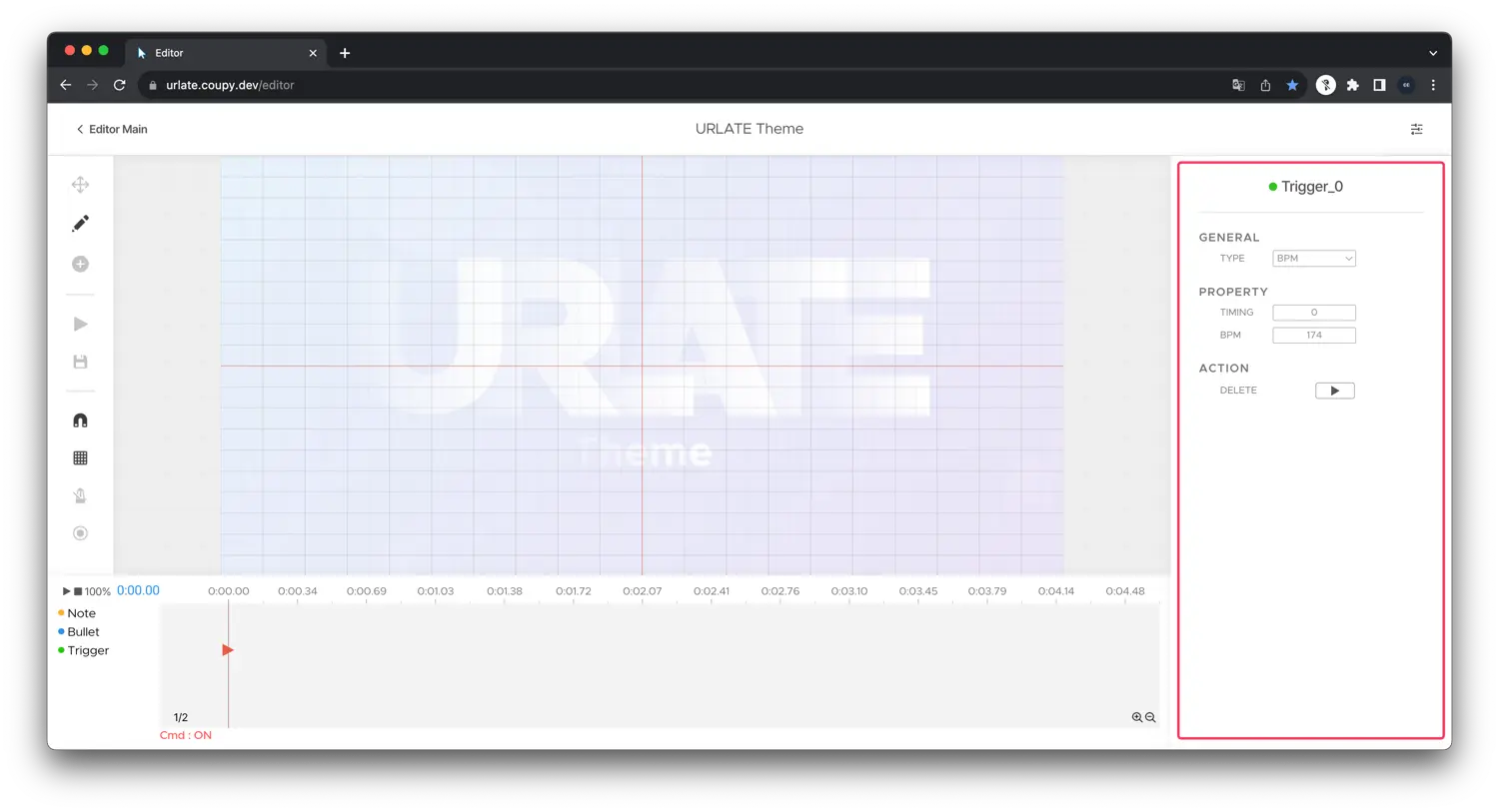
BPM Trigger
Immediately changes the BPM.
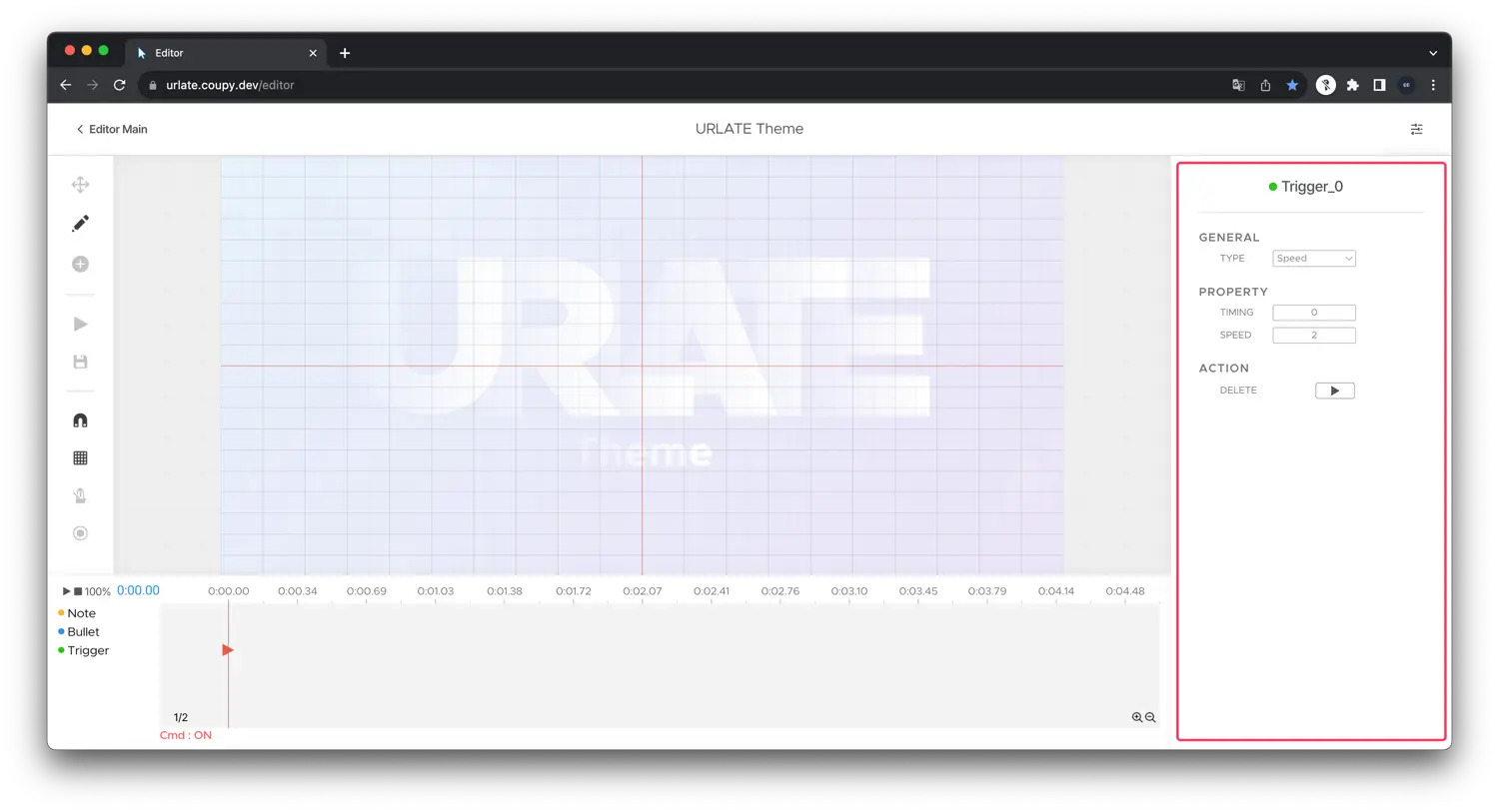
Speed Trigger
Immediately changes the speed.
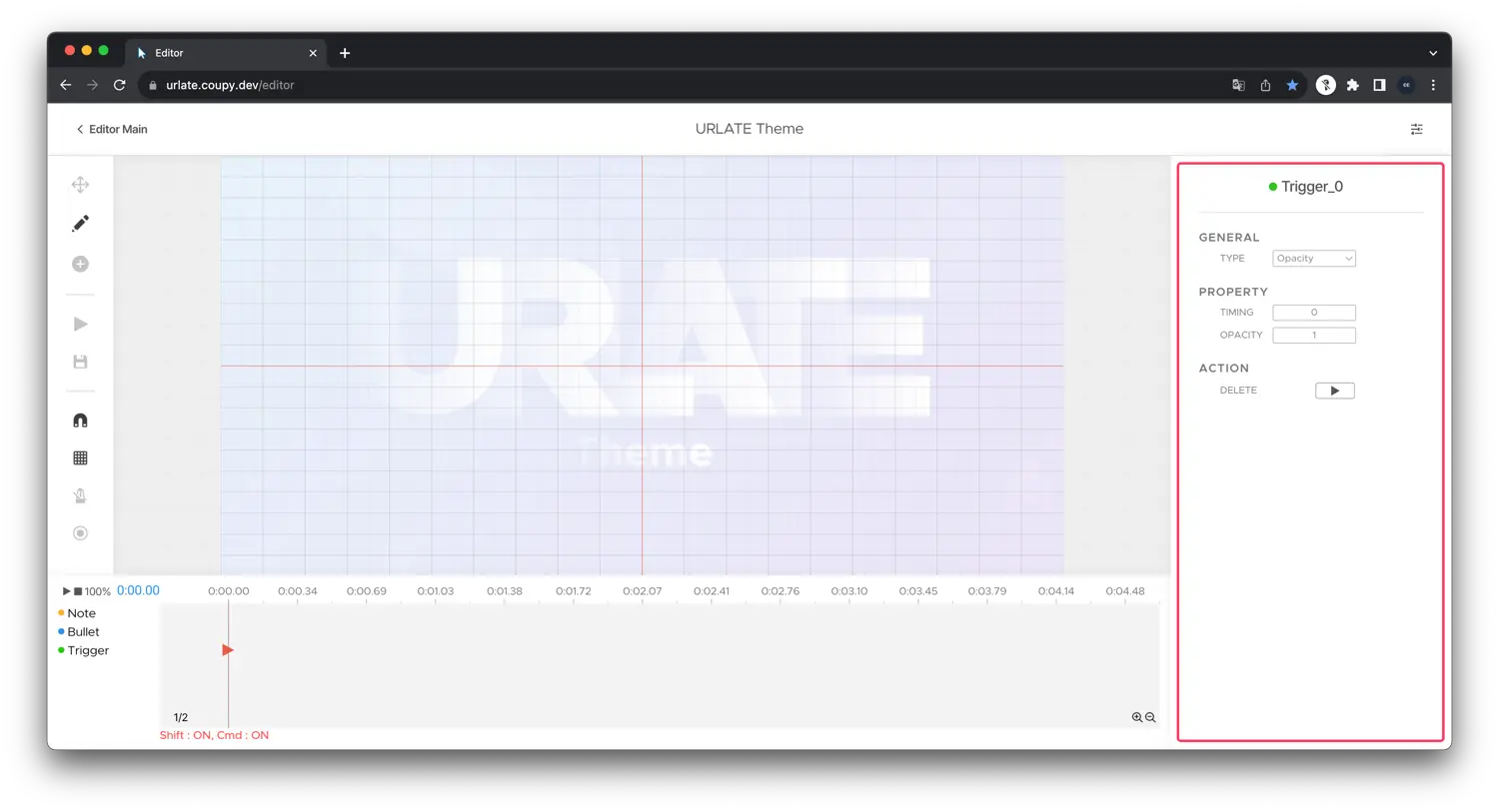
Opacity Trigger
Sets canvas opacity (range: 0 to 1).
Text Trigger
Displays text on the canvas.
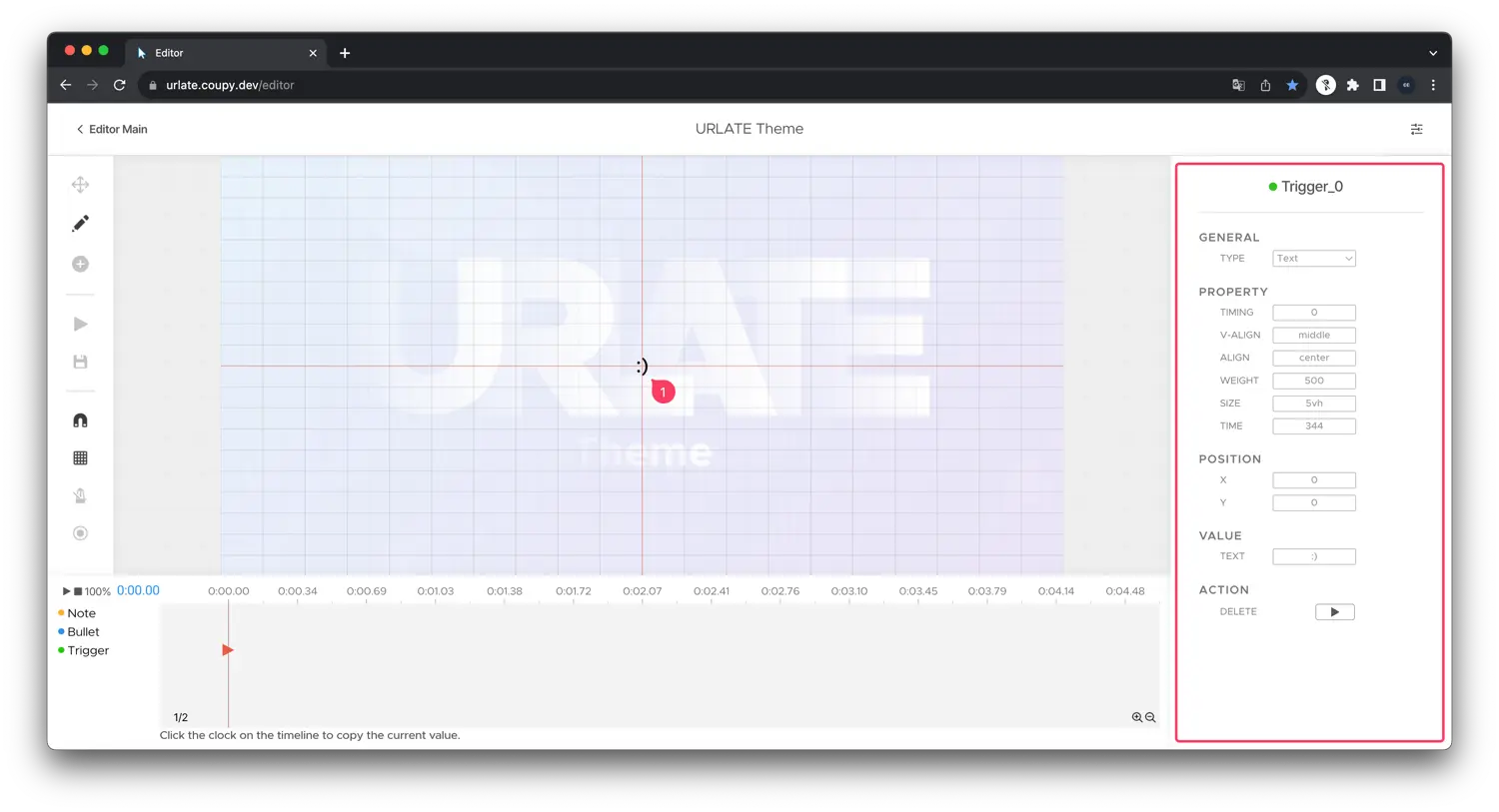
- This text is generated by the
text trigger.
-
PROPERTY
- TIMING: Beat count from the start of the song.
- V-ALIGN / ALIGN: Text alignment (see MDN docs).
- WEIGHT / SIZE: Font weight (10–900) and size (CSS unit,
vhrecommended). - TIME: Duration to display, in beats.
-
POSITION (X / Y): Text position (
-100to100). -
VALUE (TEXT): The actual text to display.
Editor Tools
Magnet
Snaps notes to the grid.
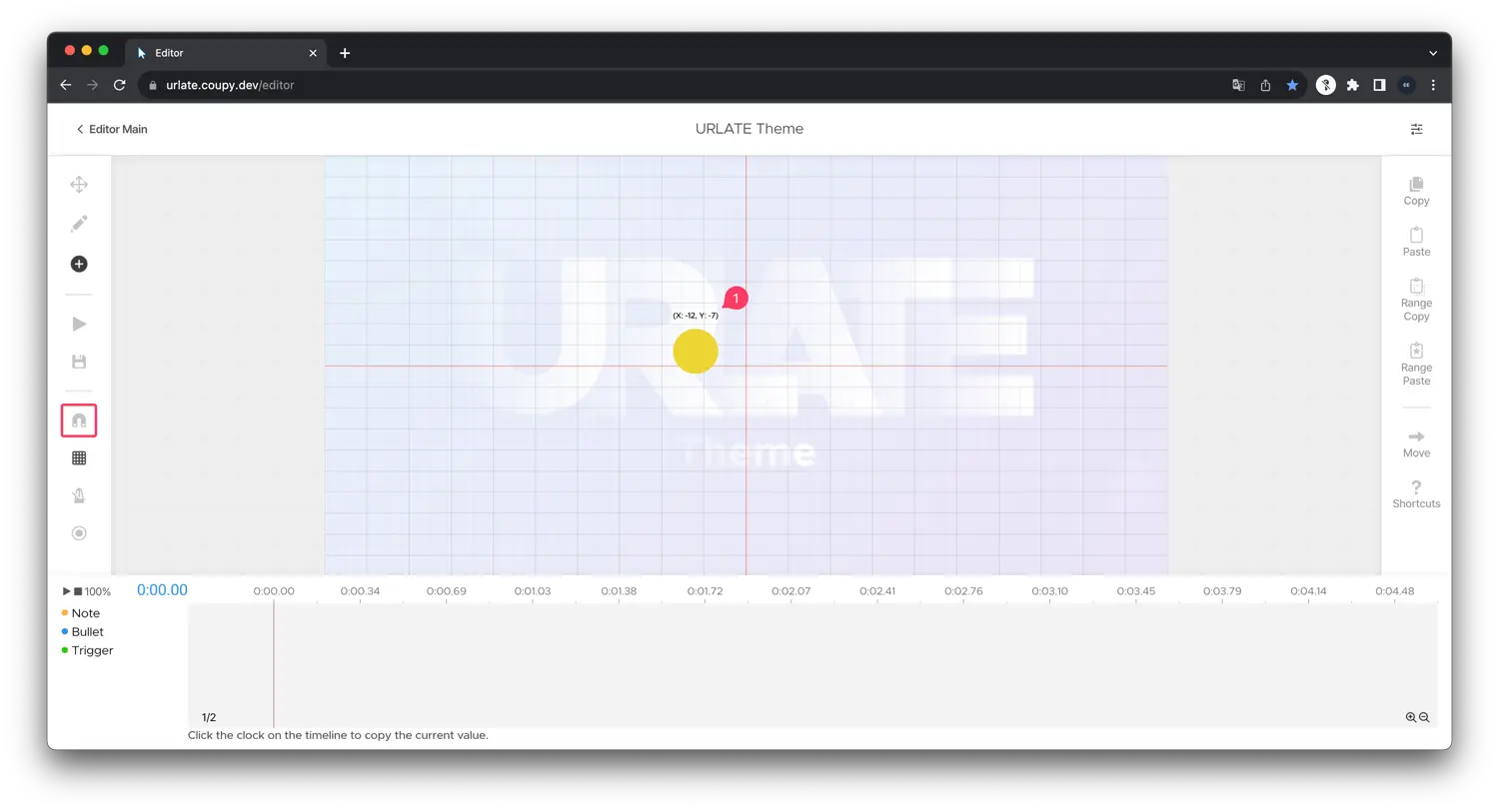
- As you can see, the notes are ignored the grid when the magnet is disabled.
Grid
Toggles grid visibility.
Even if the grid is invisible, the notes will be snapped to the grid if the magnet is enabled.
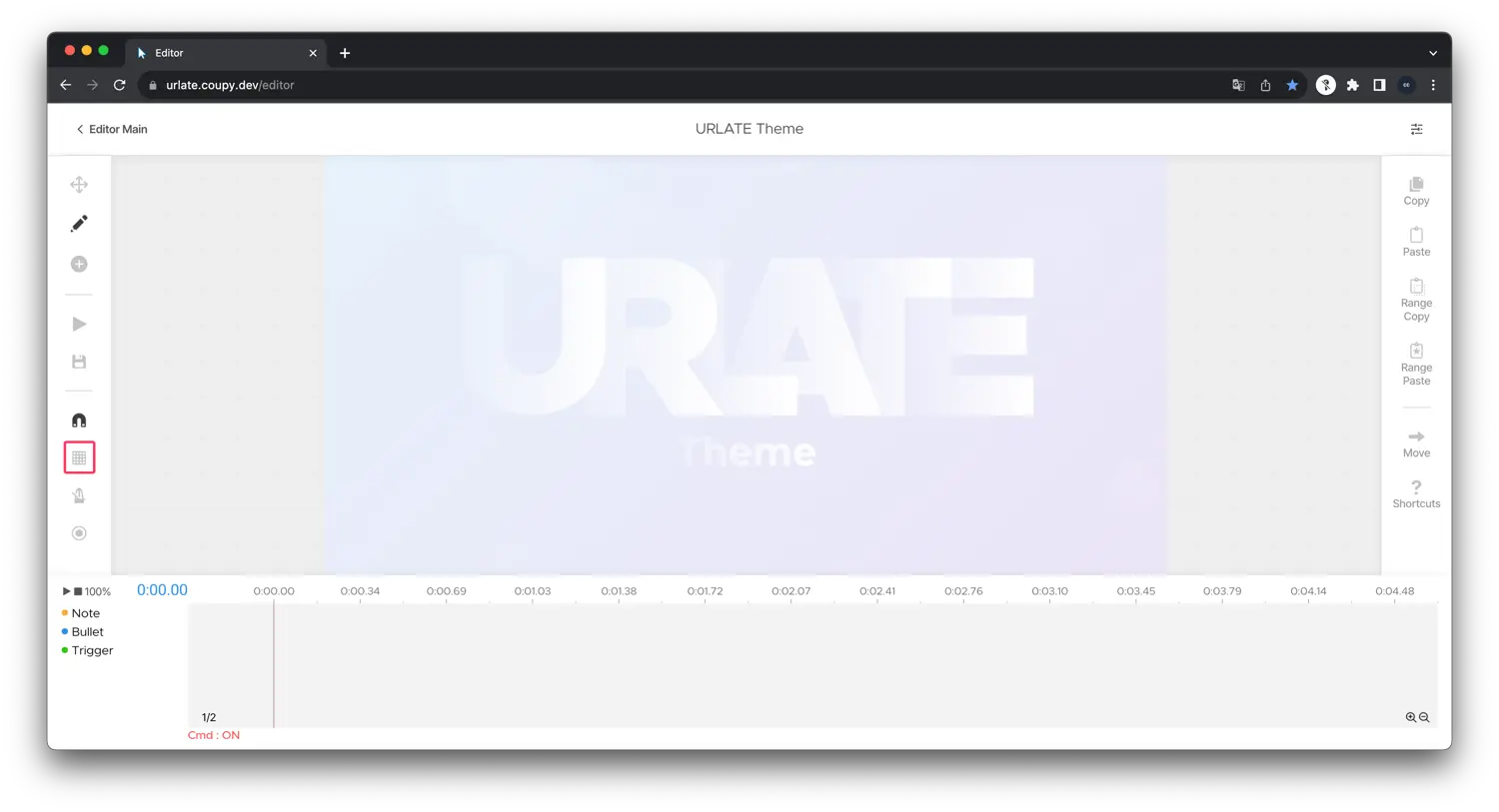
Metronome
Plays metronome sound during preview playback.
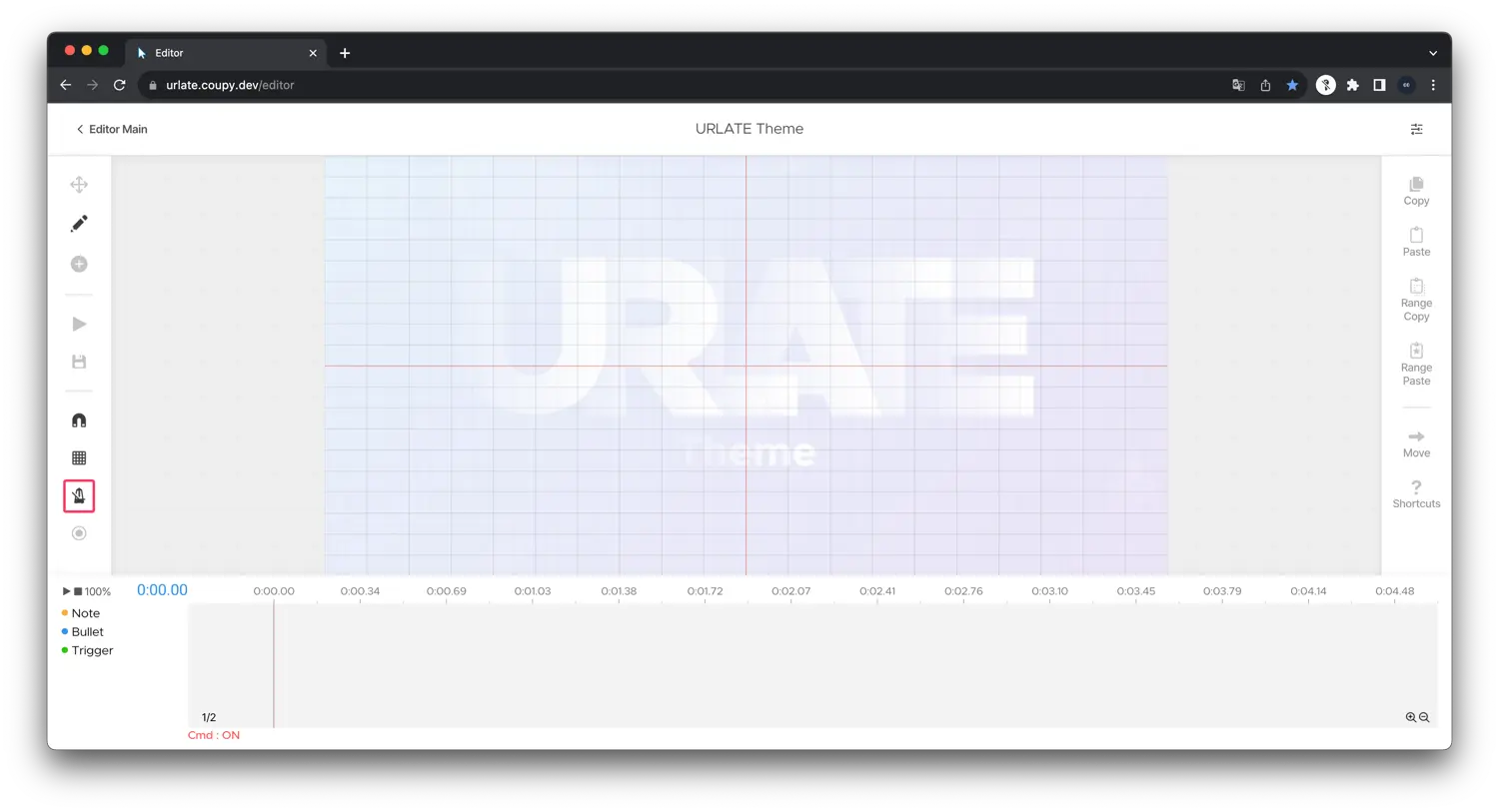
Circle Grid
Displays a circular grid when notes are selected, useful for jump patterns.
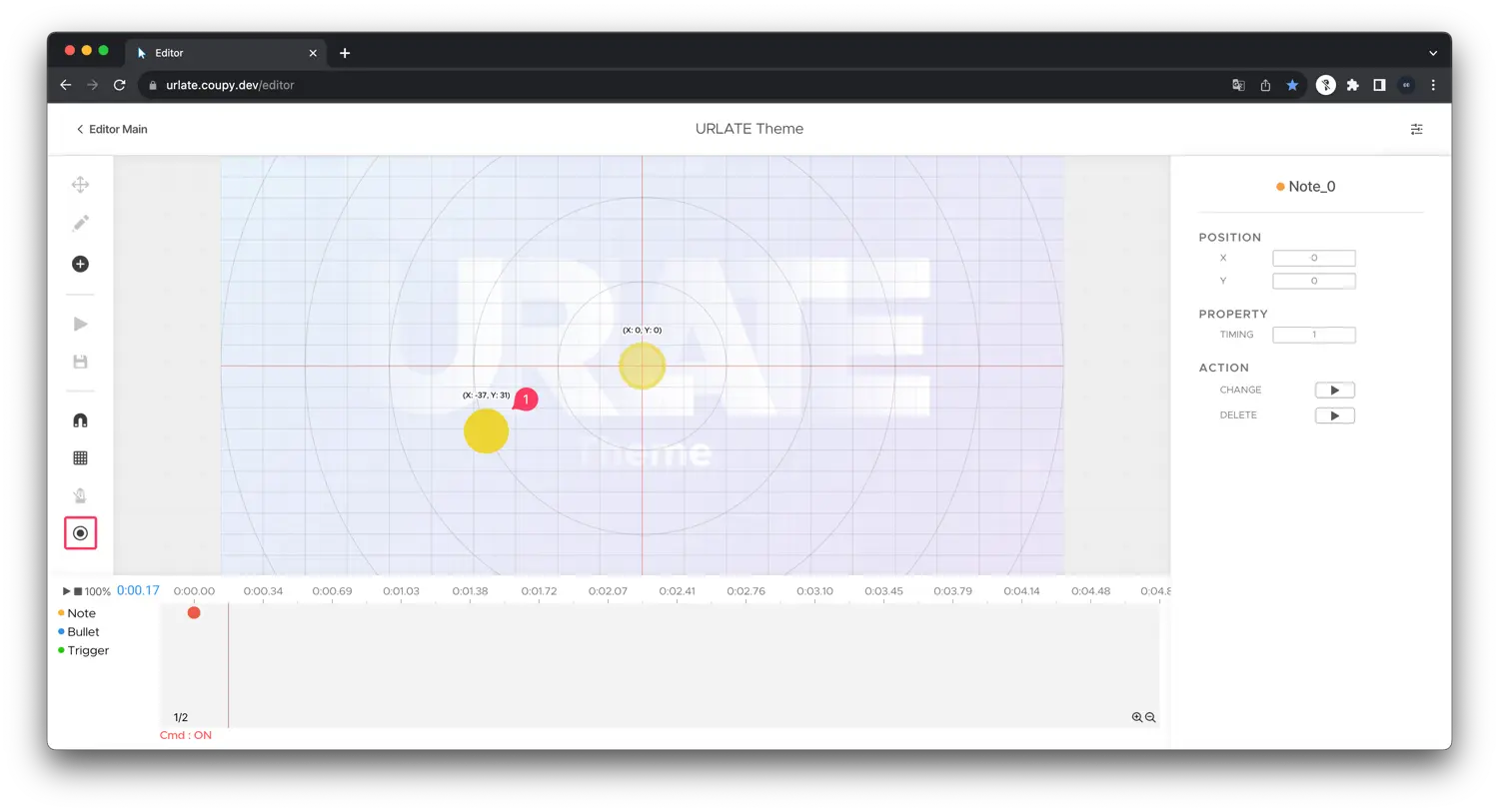
- As you can see, the note is snapped to the circle grid.
Element Tools
Copy/paste one or multiple objects using these buttons.
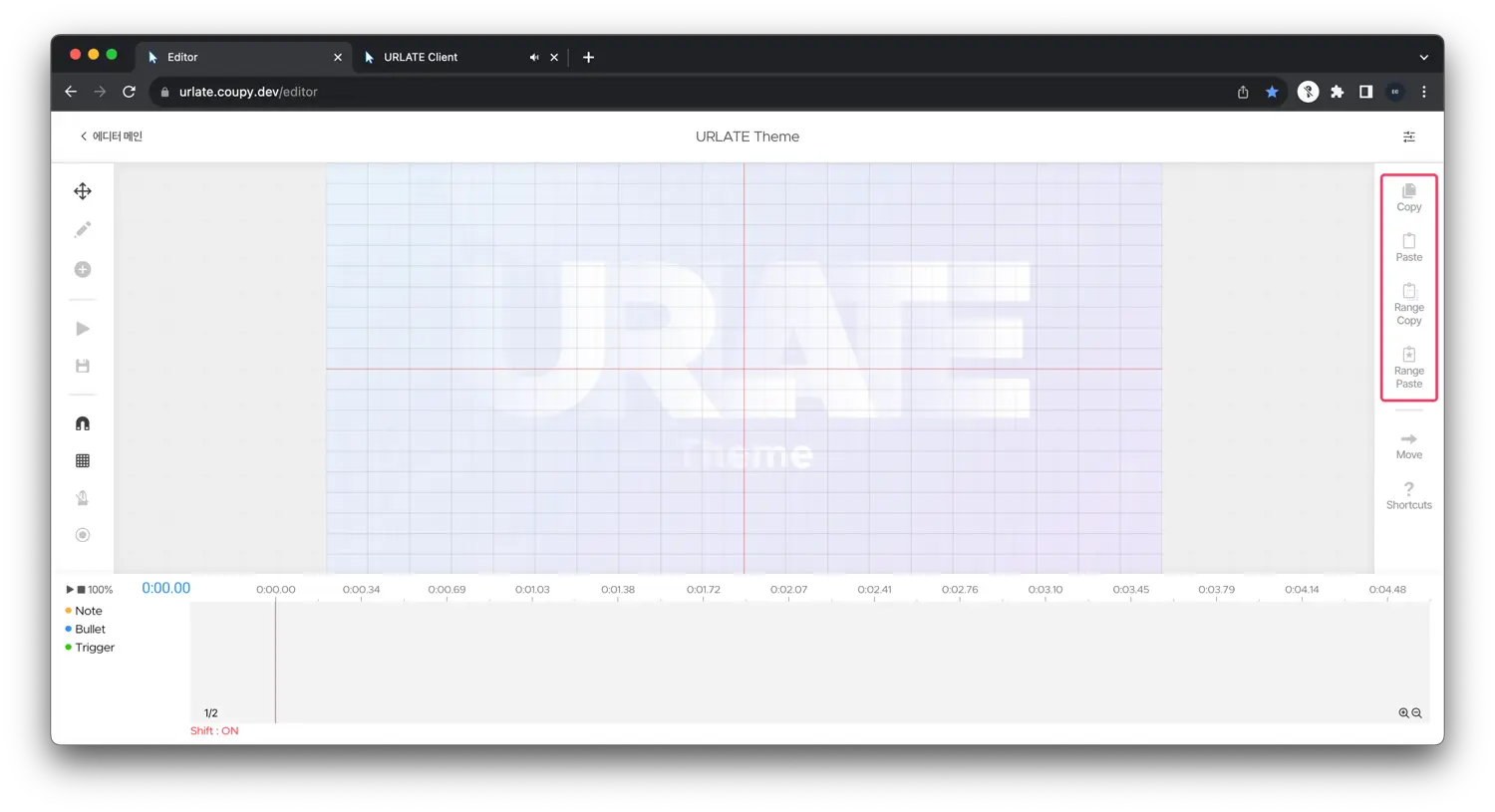
Copy
Click or press Ctrl(⌘) + C to copy.
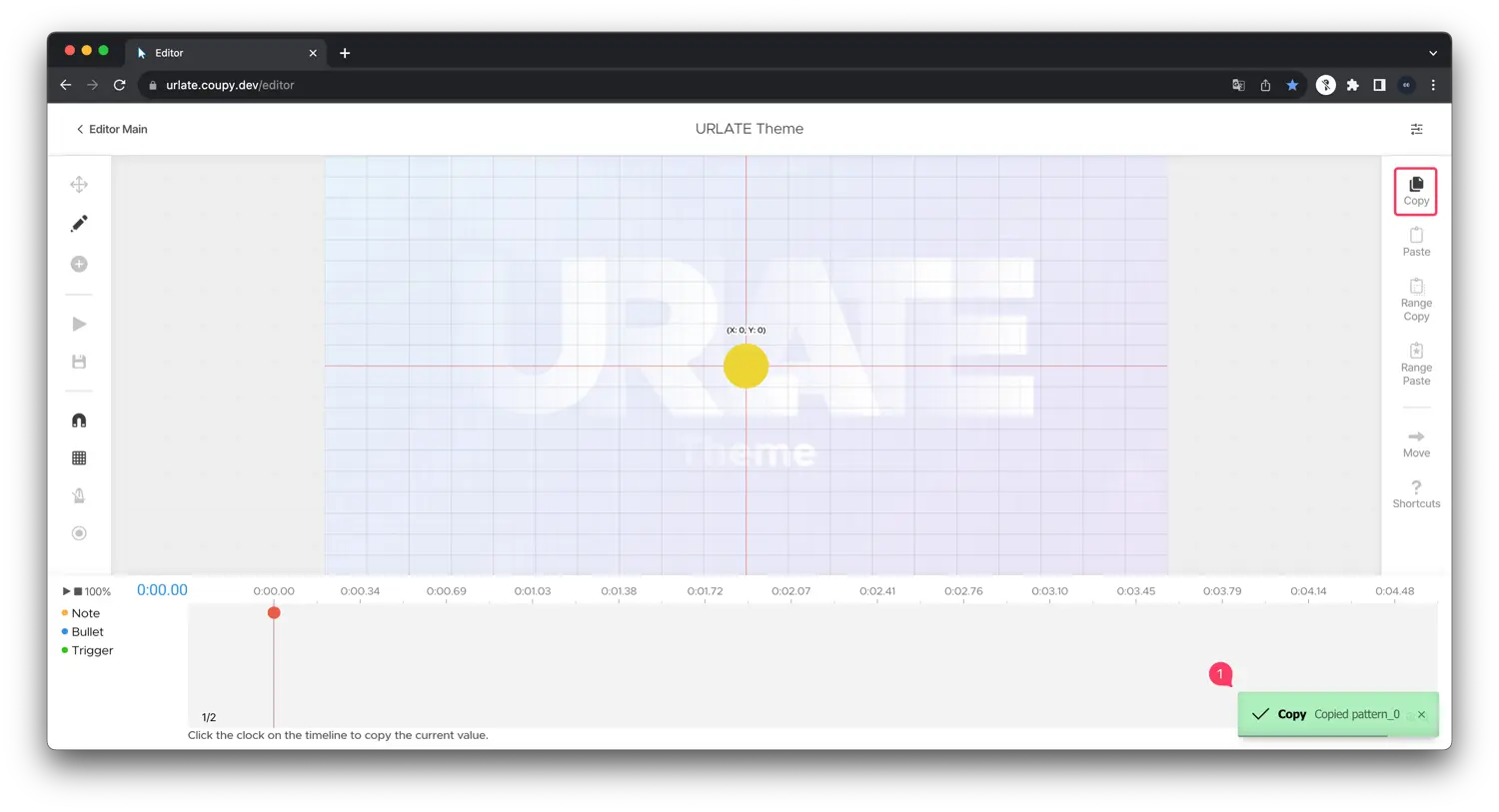
- The alert will be shown when you copy the objects.
Paste
Click or press Ctrl(⌘) + V to paste.
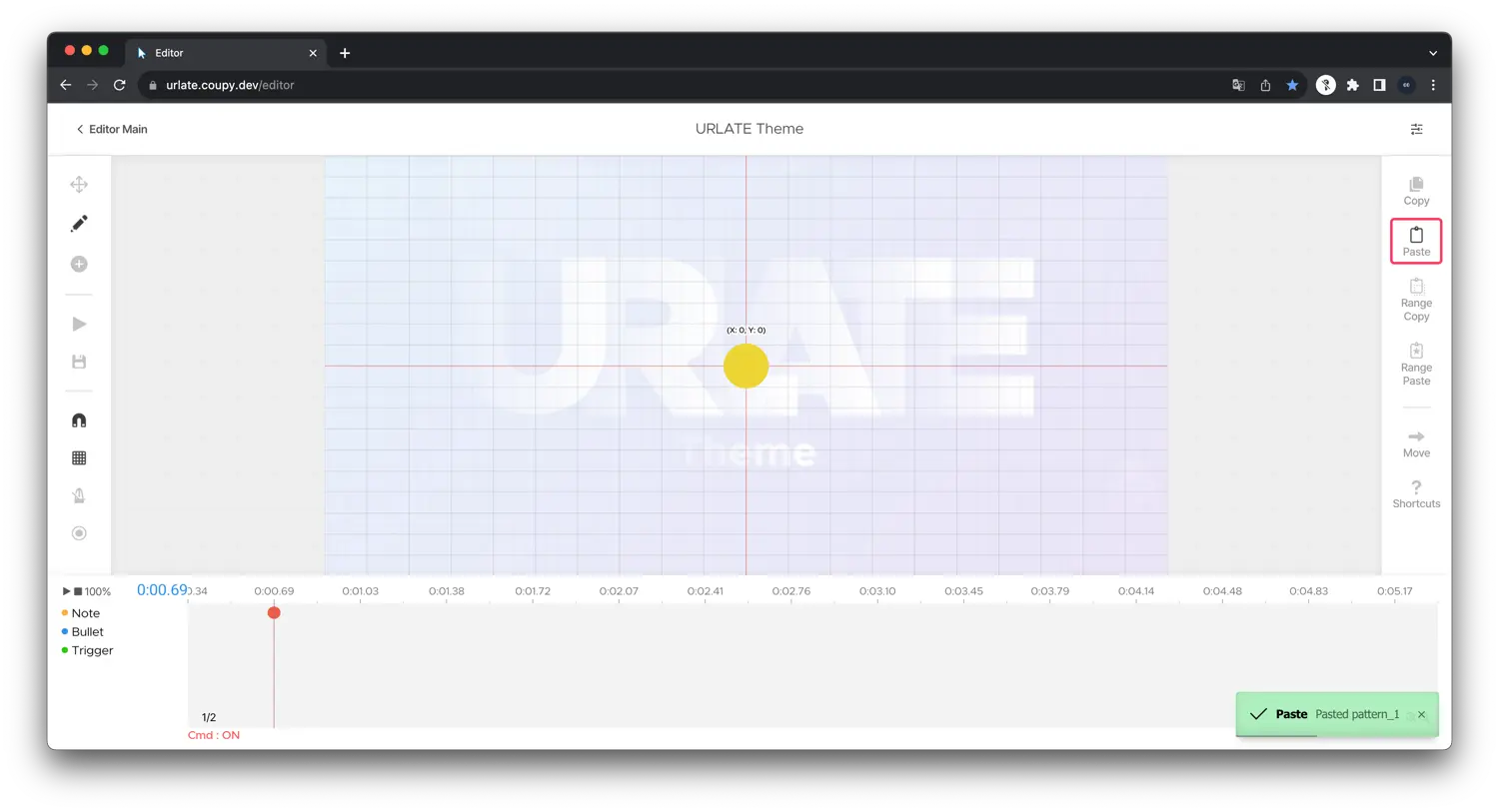
Range Copy
Copy objects within a selected range.
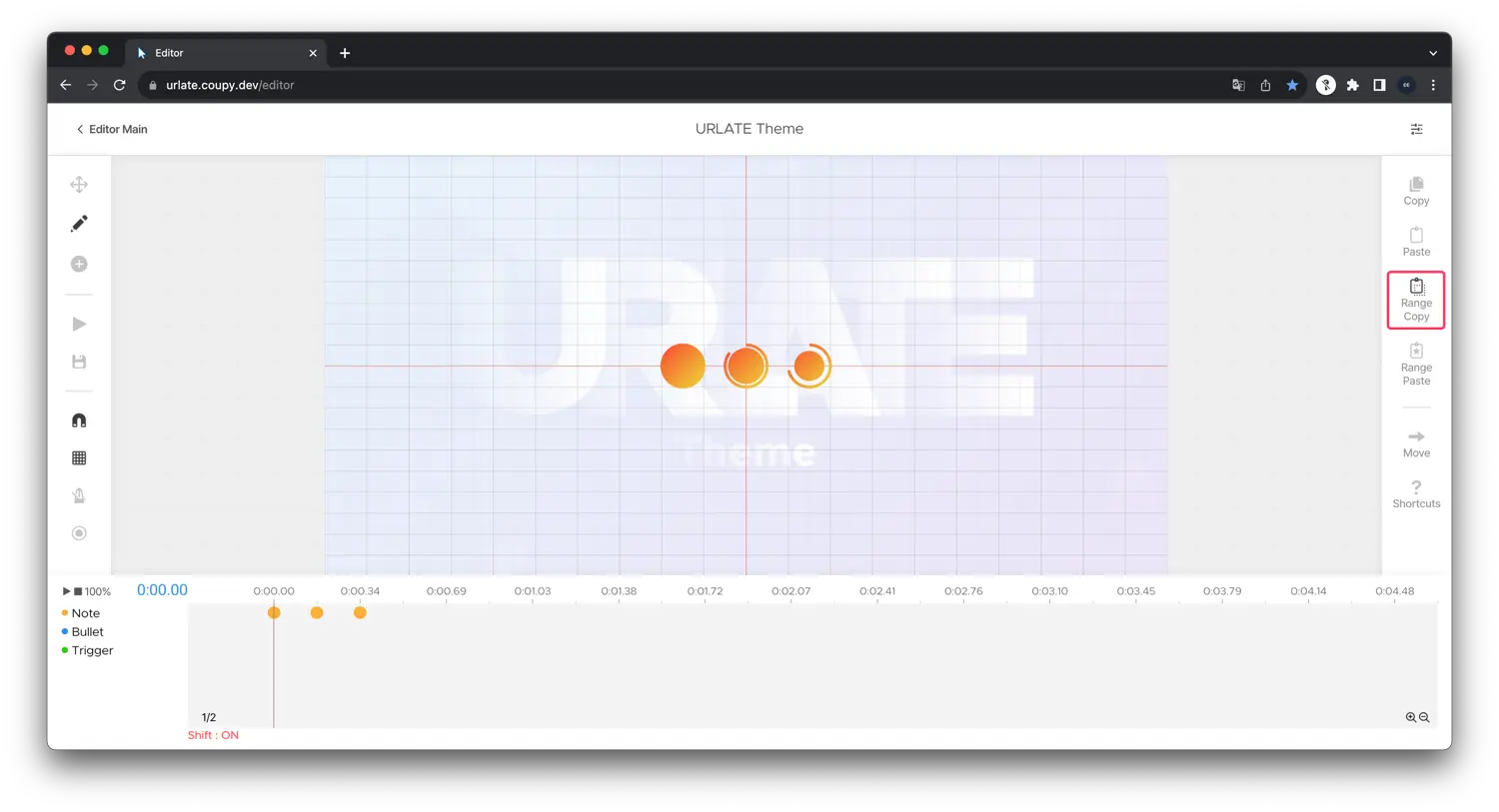
You will see the element selection dialog.
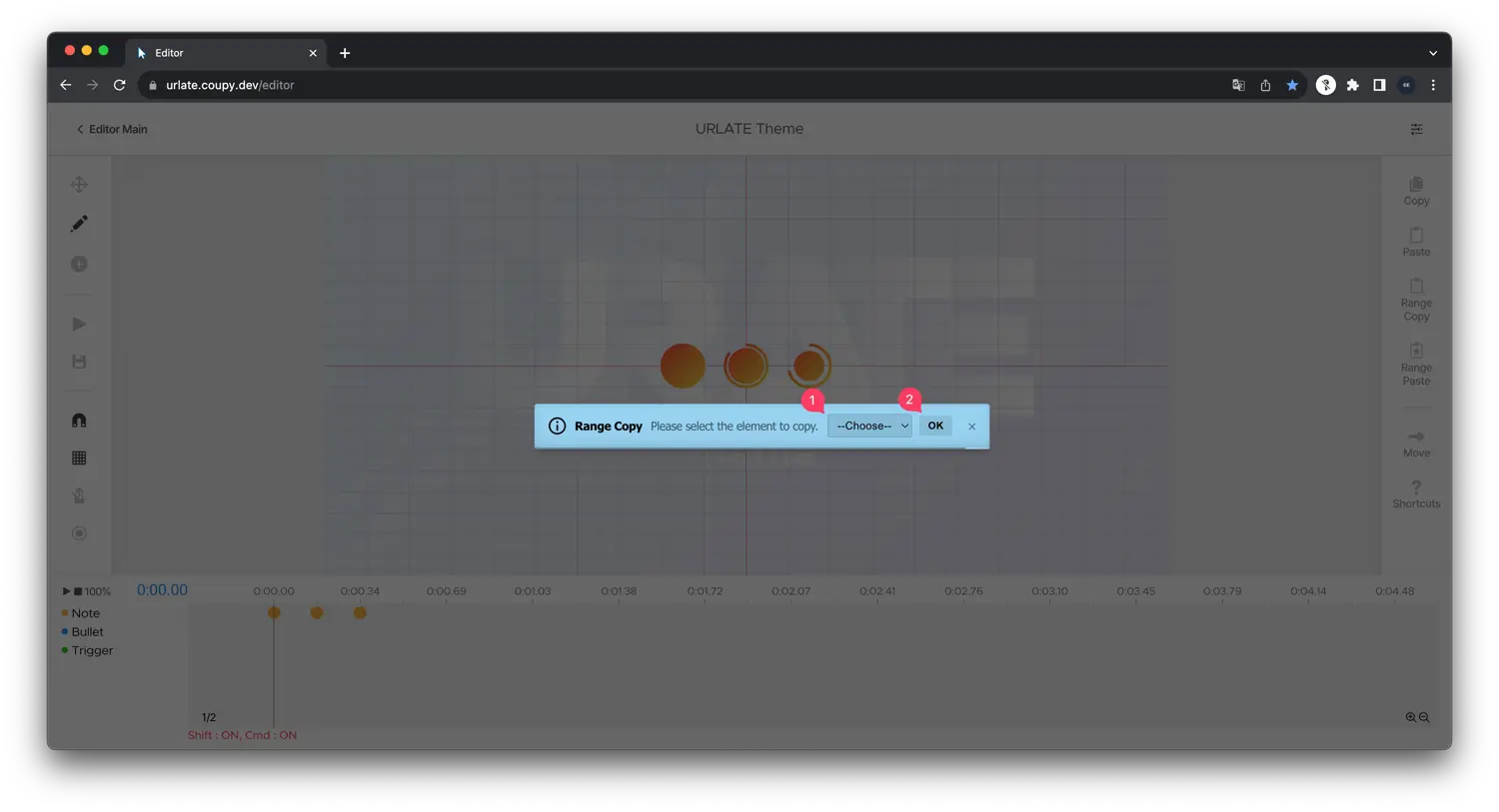
- Select the element type you want to copy.
- Press
OKto copy the objects.
You can see the alert telling you to select the range.
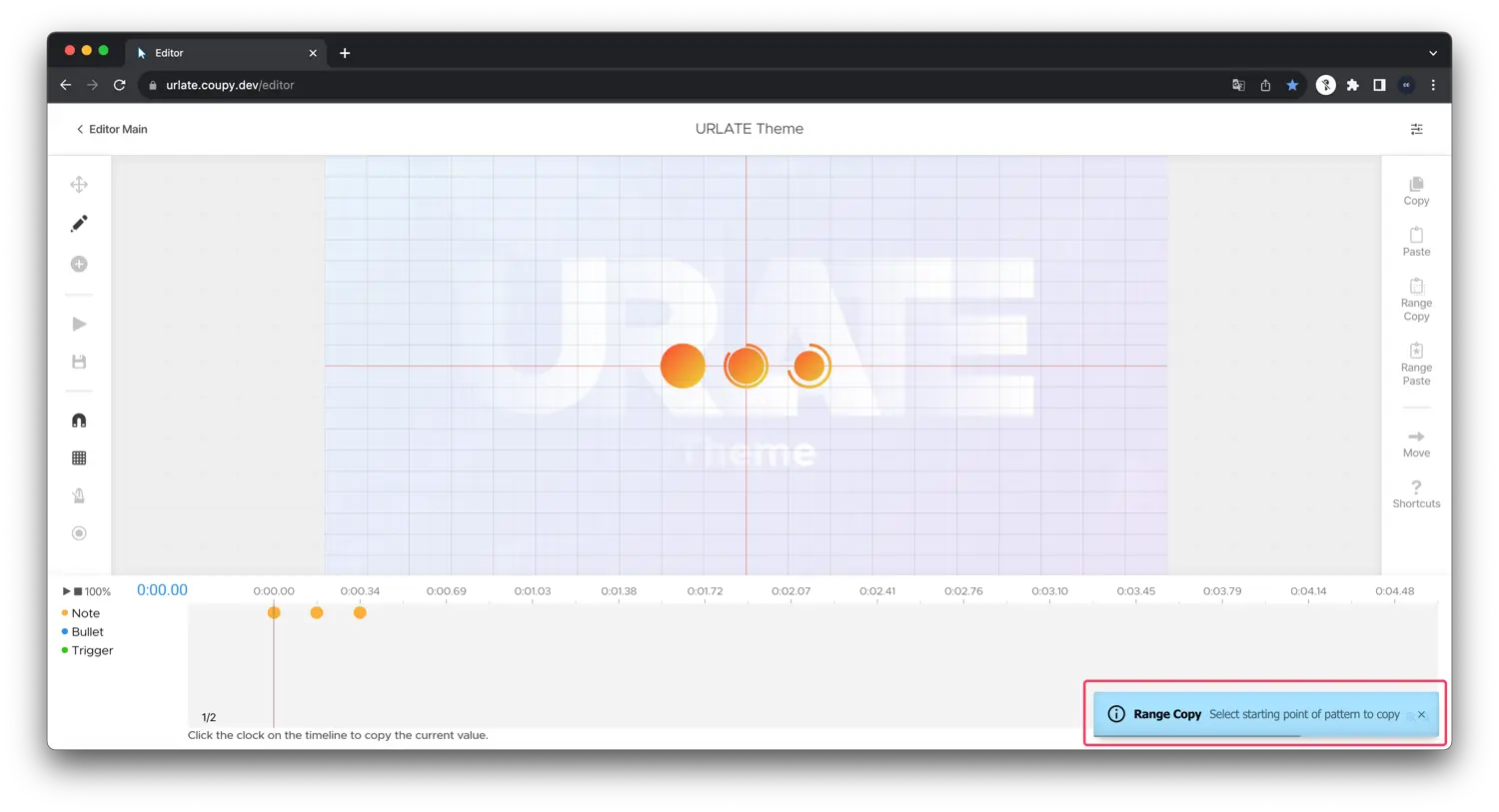
Select the start element from the timeline or preview.
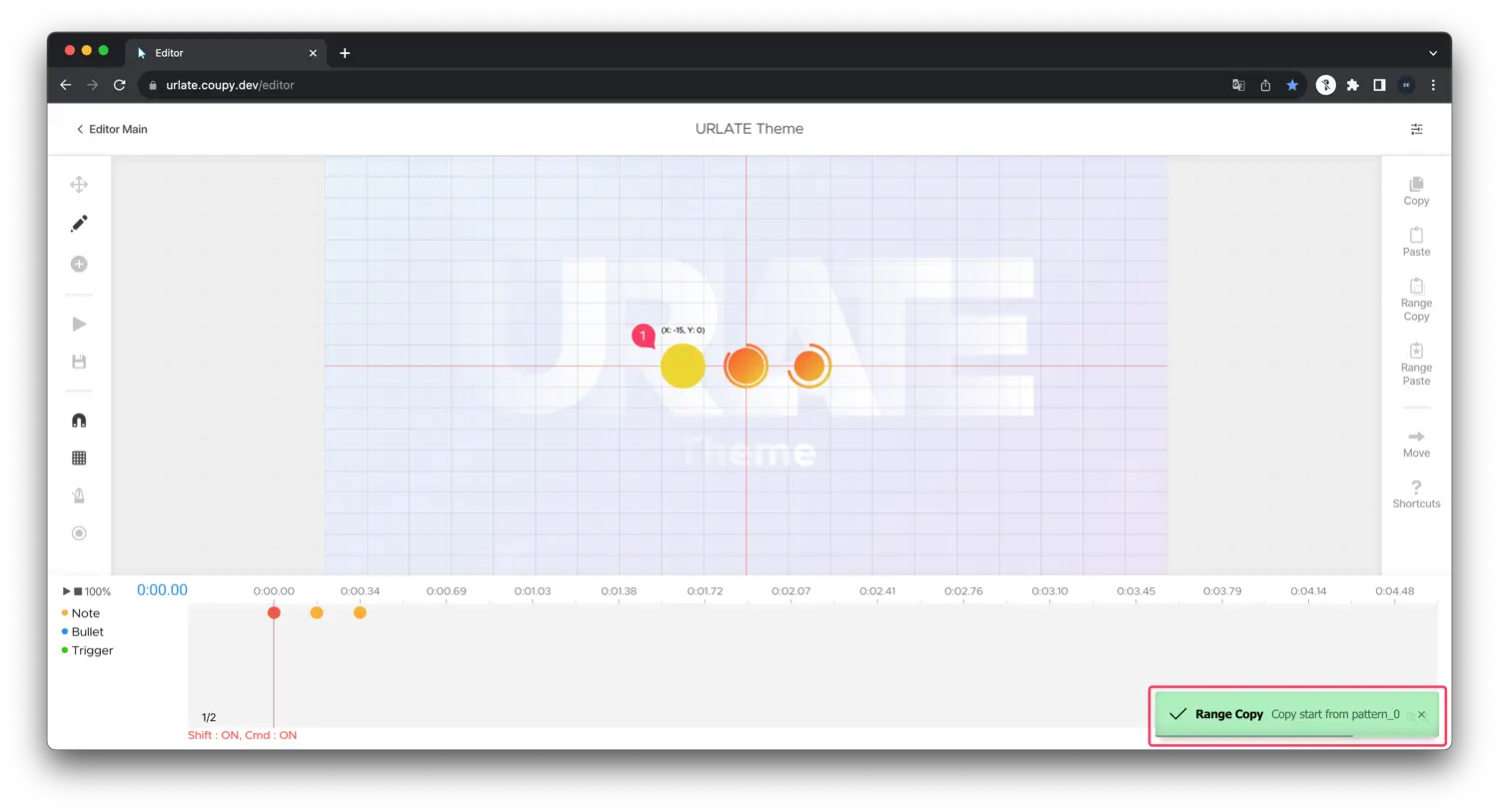
Alert will be shown when you select the start element.
Now select the end element.
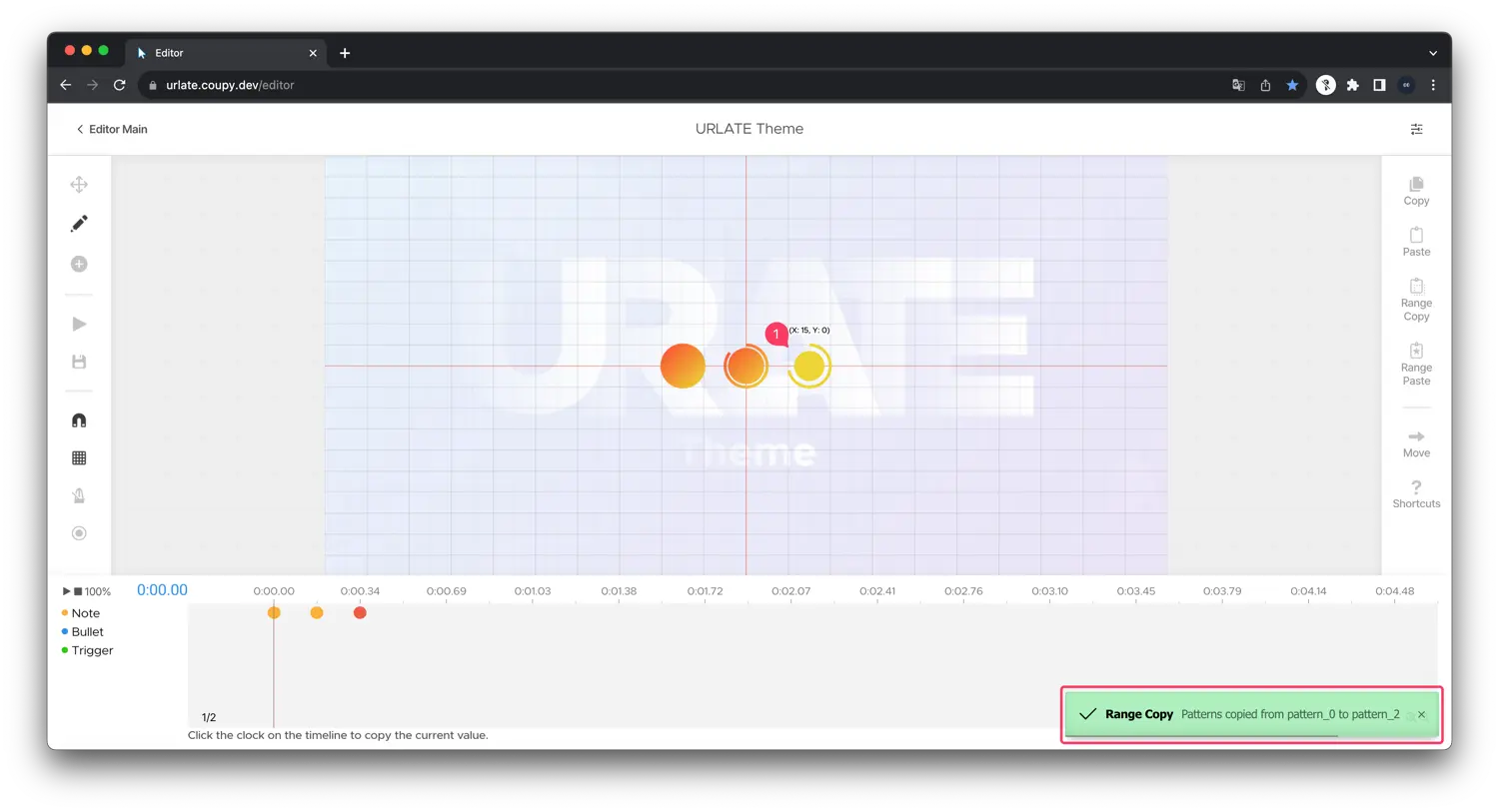
Alert will tell you the range you selected.
Range Paste
Paste objects copied via range.
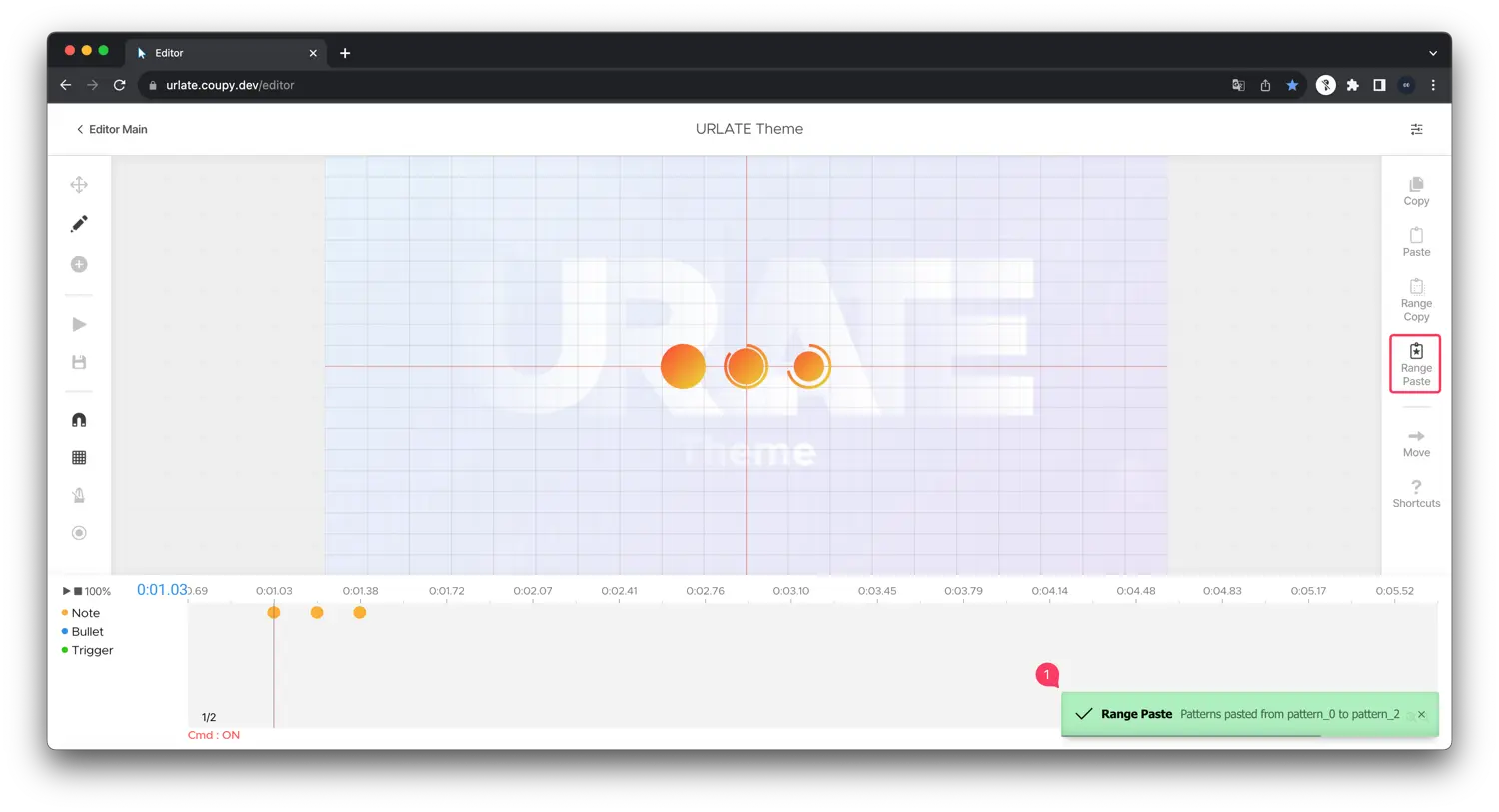
- Alert will be shown when you paste the objects.
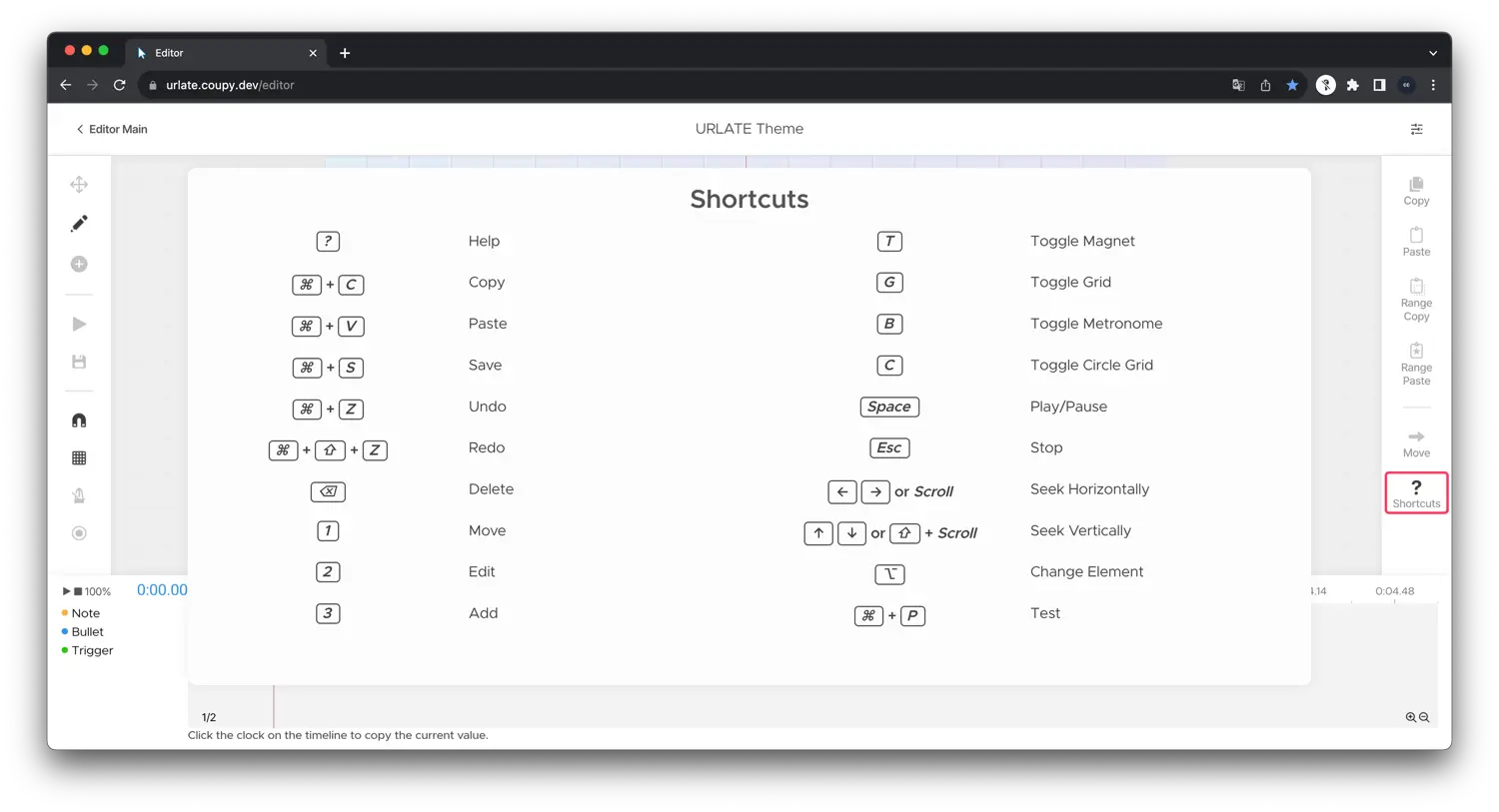
Shortcuts
Press /(?) or hover over the Shortcuts tool to view all shortcuts.