Basic
This guide is for users to play URLATE.
Let's learn how to play URLATE by step-by-step.
Enter the game
You can play the latest version of URLATE at urlate.coupy.dev.
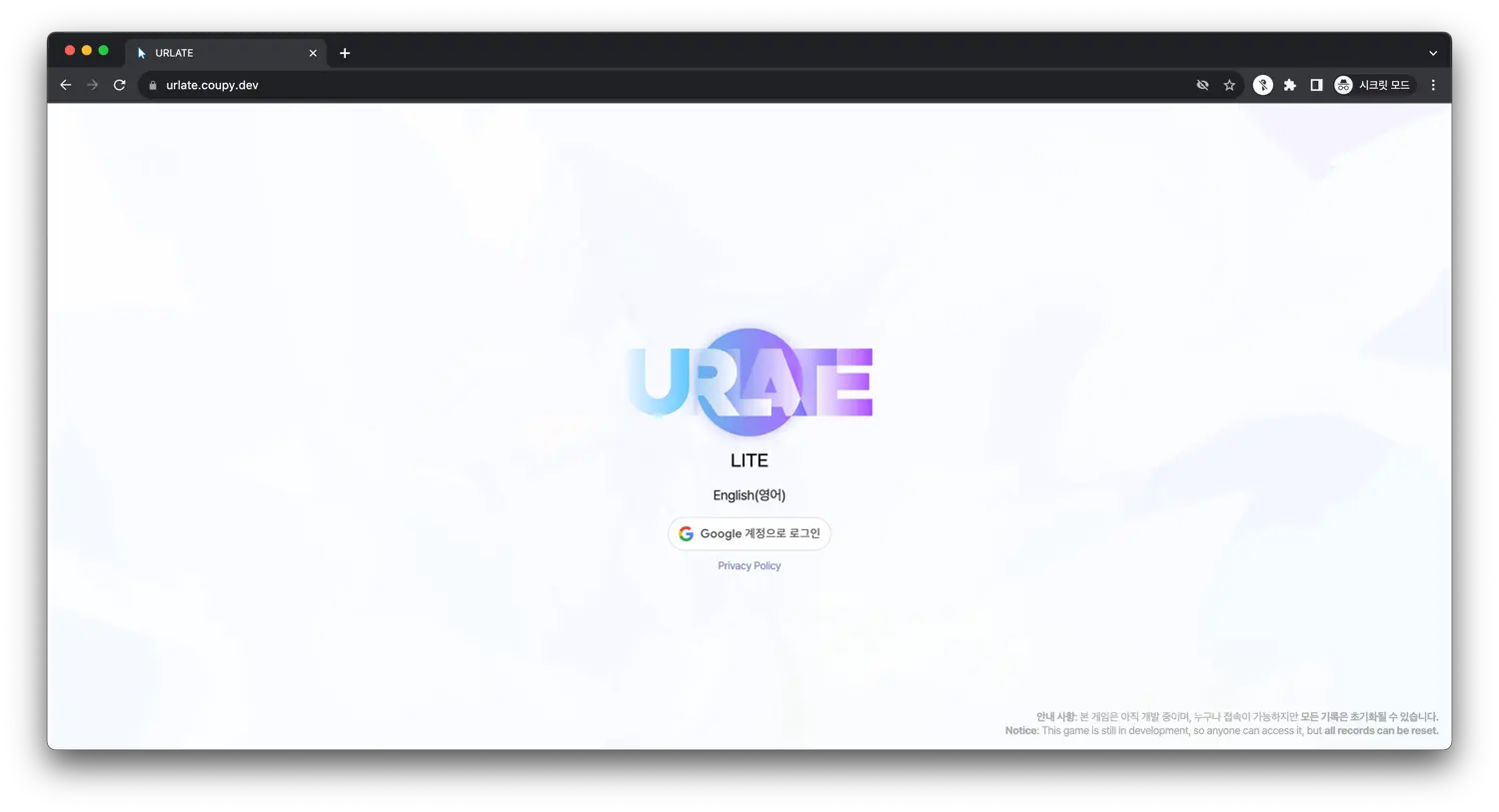 As shown in the picture above, you should login with your Google account to play URLATE.
If you don't have a Google account, you can create one at accounts.google.com.
First login
If you login to URLATE for the first time, you will be asked to enter your nickname.
You can't change your nickname after you enter it, so please be careful when entering it.
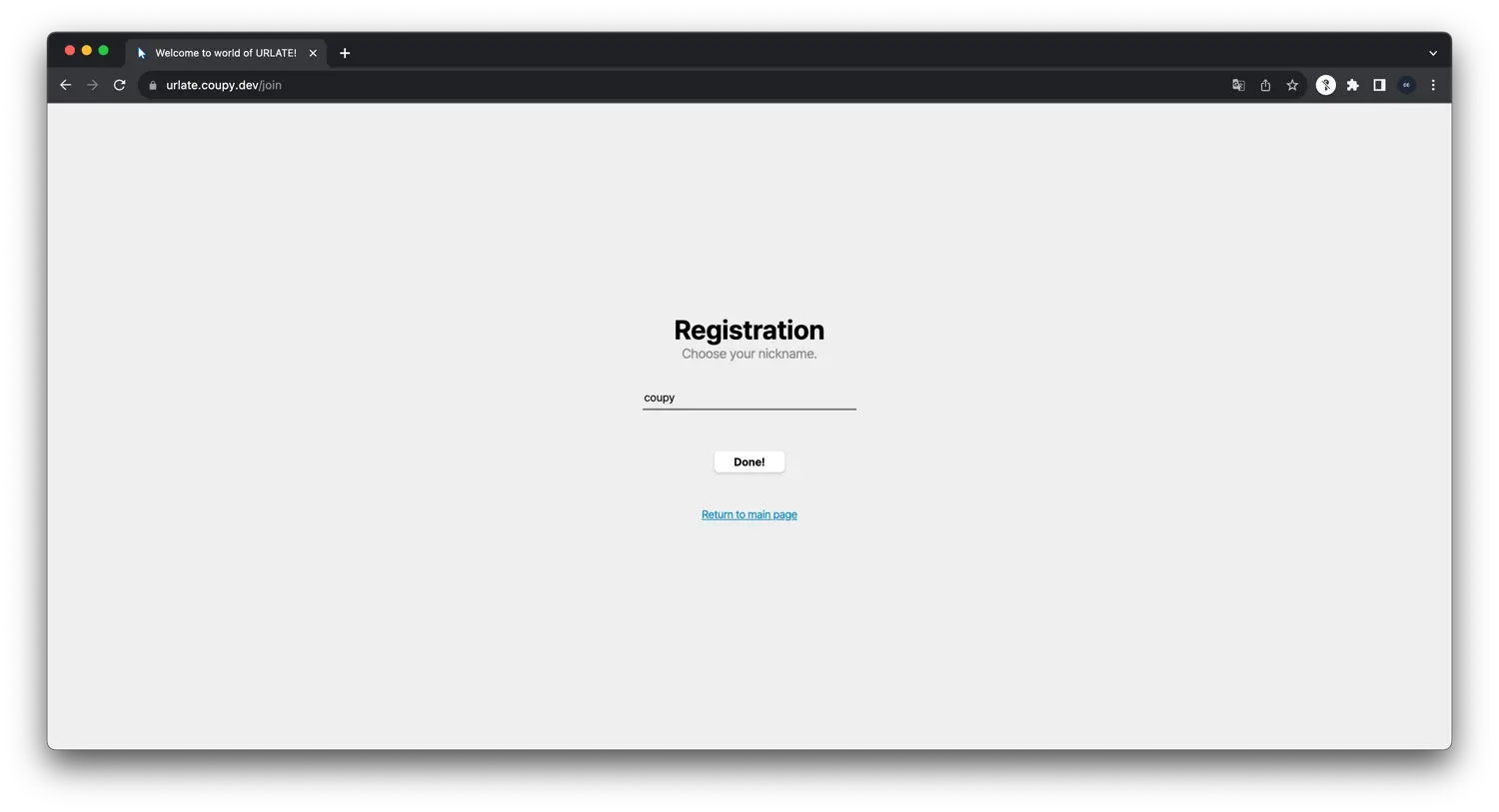 After entering the nickname, you will see the welcome screen.
Click the All good! button to start the tutorial.
You can skip the tutorial by clicking the Sorry, I don't want to. text.
Don't worry, you can play the tutorial again later in the Options menu.
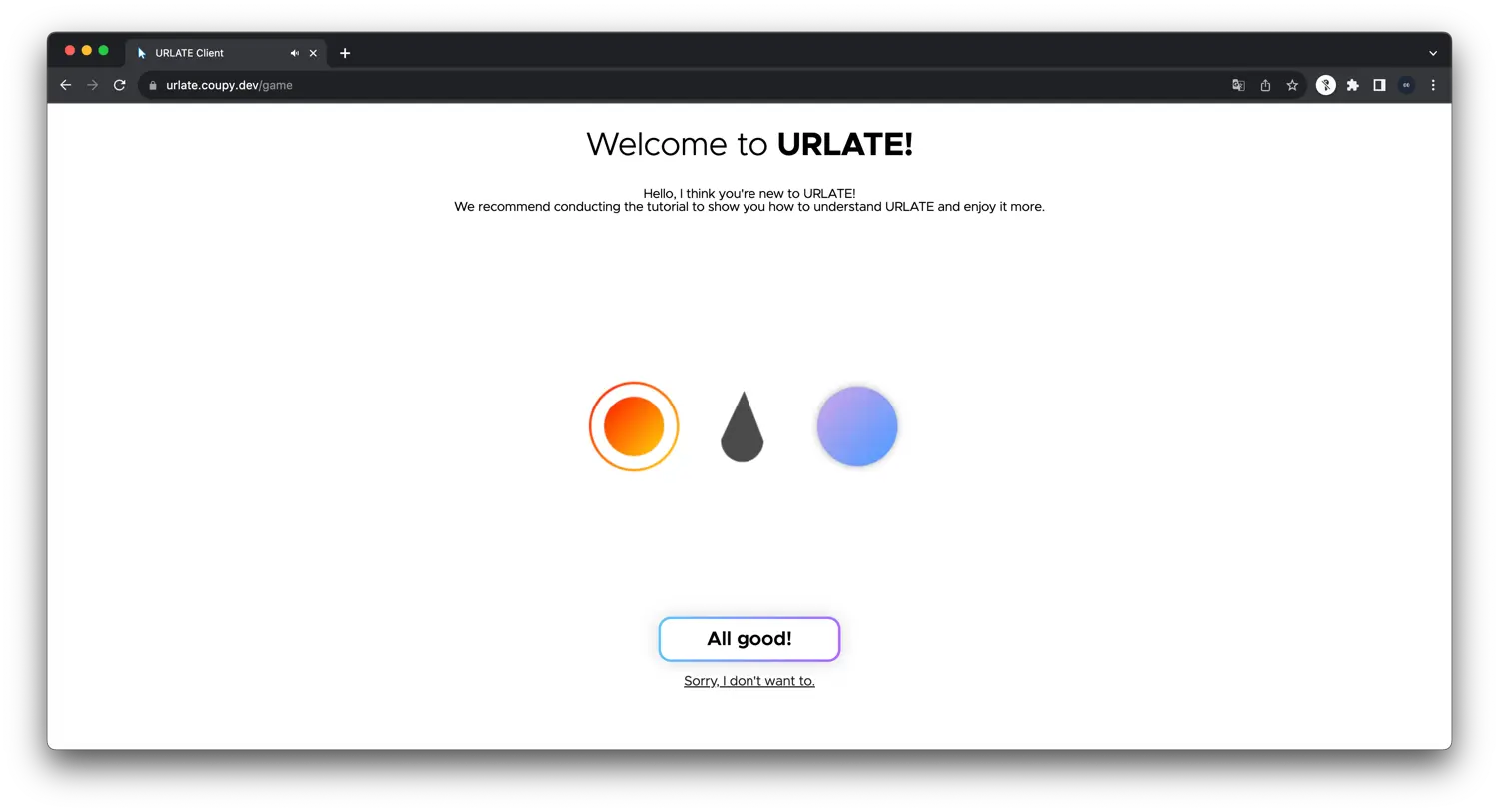 If you click the
 All good! button, the tutorial will start.
Concentrate on the tutorial and follow the instructions to learn how to play URLATE.
You can change the volume of the game faster by scrolling the mouse wheel while pressing the Shift key.
Main screen
After the tutorial, you will see the main screen.
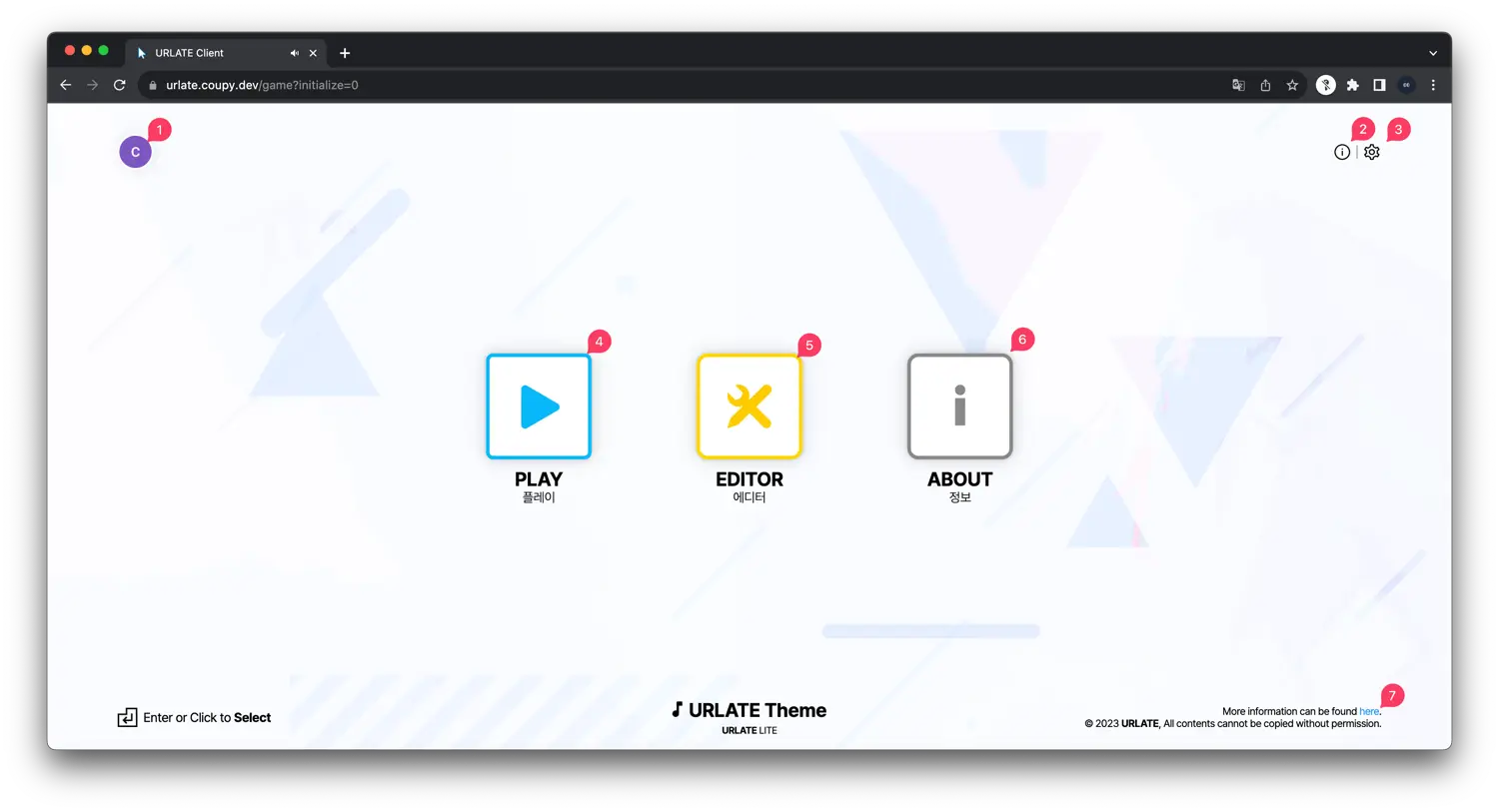
- Profile
You can see your profile picture and nickname here.
Clicking this will open the profile screen. - Info
Credits and several information about URLATE are here. - Options
You can change the settings of URLATE here. - Play
You can play the game here.
Clicking this will open the song selection screen. - Editor
You can create or play patterns here.
Clicking this will redirect you to the Editor page. - About
You can see the information about URLATE here. - Copyrights
You can see the copyright information about all resources here.
Clicking this will redirect you to the Credits page.
Profile
You can see your profile page by clicking the profile picture on the main screen.
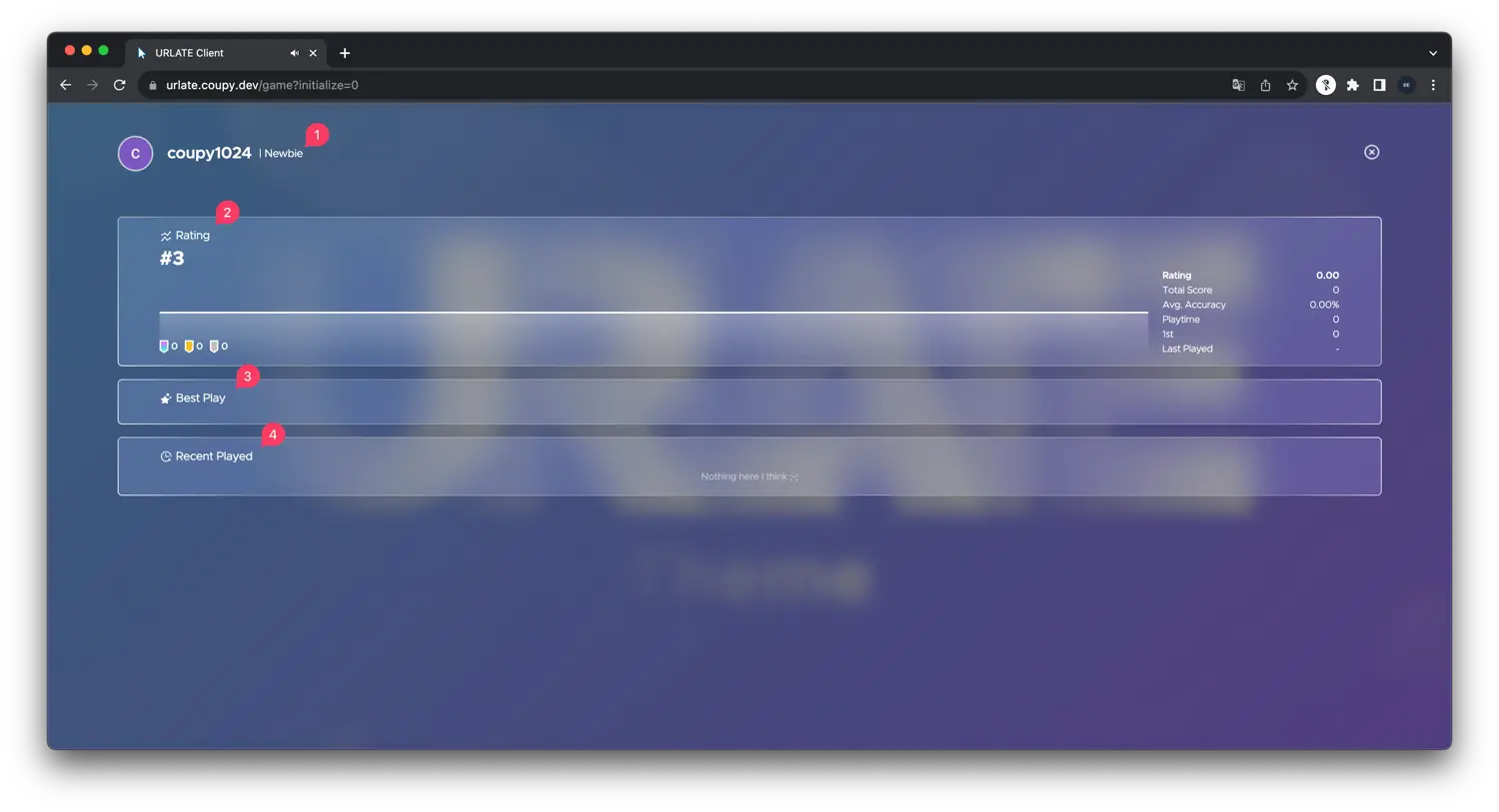
- Alias
You can see your nickname, picture and alias here. - Rating
You can see your rating here.
Rating is a value that represents your skill in URLATE.
You can also see the many information about your game skill. - Best Play
You can see your best play here.
The best play sort is determined by the rating. - Recent Played
You can see your recent played songs here.
Song Selection
You can see the song selection screen by clicking the Play button on the main screen.
Try using the keyboard shortcuts to navigate the song selection screen faster.
Arrows: Seek the track
Enter: Select the track
Tab: Change the difficulty
F2: Show the ranking
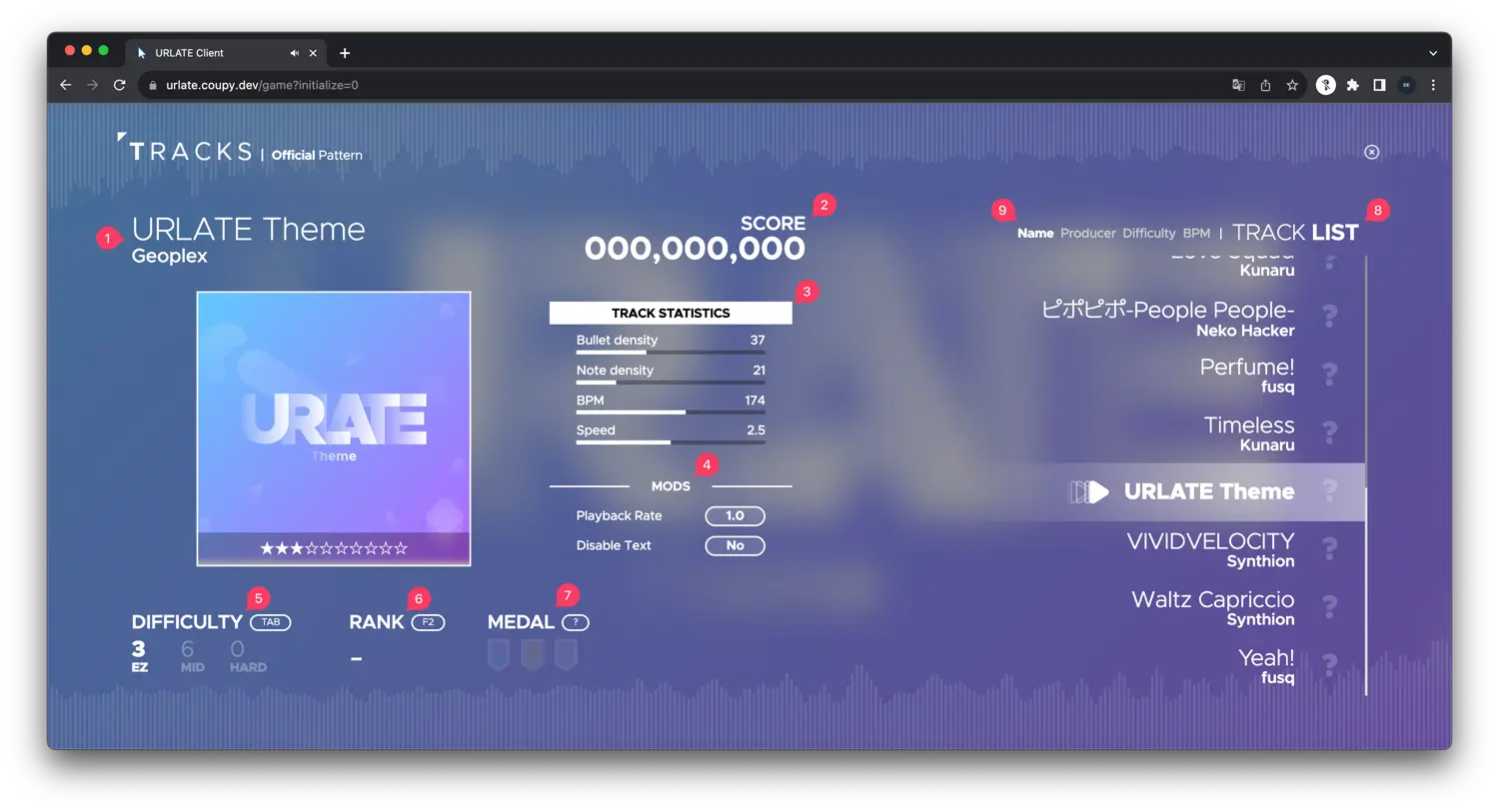
- Title
You can see the title and producer of the song here. - Best score
Your best score of the song will be shown here. - Track statistics
This section shows the track statistics based on the difficulty you selected. - Mods
You can change the playback rate and the text visibility here.
Increasing the playback rate will increase the max score, but it will be harder to play. - Difficulty
You can change the difficulty here.
The difficulty is divided into 3 levels:EZ,MID,HARD.
The higher the difficulty, the higher the rating you can get. - Rank
You can see what rank you are among those who have played the selected difficulty level of this song.
The rank is determined by the score. - Medal
This section shows the medal you got in the selected difficulty level of this song.
Medals represent 'AP', 'FC', and 'Clear' from the left.- AP
AP stands for 'All Perfect'.
If you get all notes as 'Perfect', you will get this medal. - FC
FC stands for 'Full Combo'.
You can get this medal if you don't miss all the notes and don't get shot by a bullet. - Clear
You can get this medal if you get C or higher grade.
- AP
- Track list
You can see the track list here.
Clicking the track will select the track and show the track information.
Clicking the track again will start the game. - Track list sort
You can sort the track list byName,Producer,Difficulty,BPM.
If you sort the track list byDifficulty, the track list will be sorted by the difficulty of the selected difficulty level.
Option
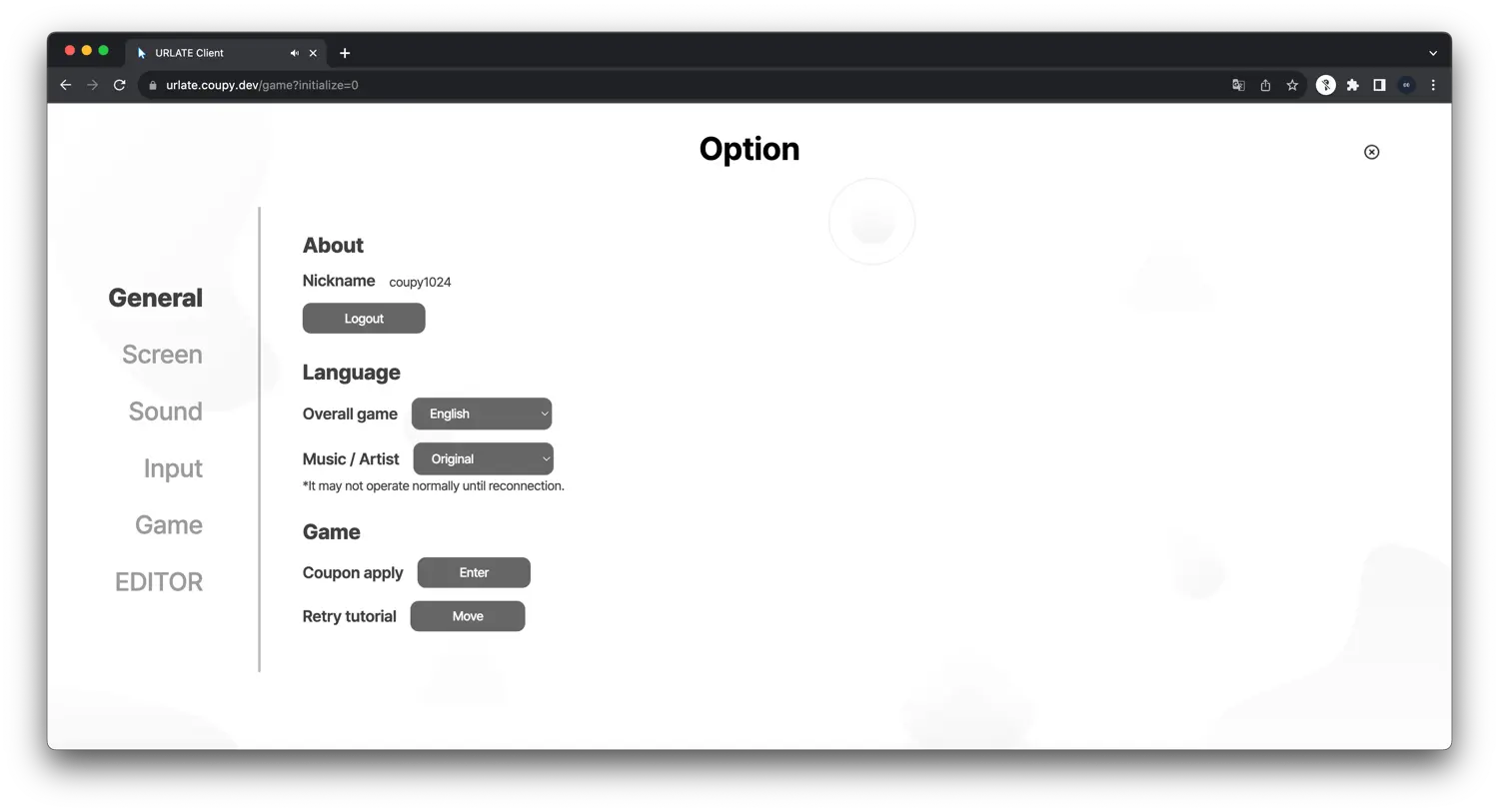
You can see the options screen by clicking the Option button on the main screen.
Gameplay
You will see the gameplay screen after you select the track and click the track again.
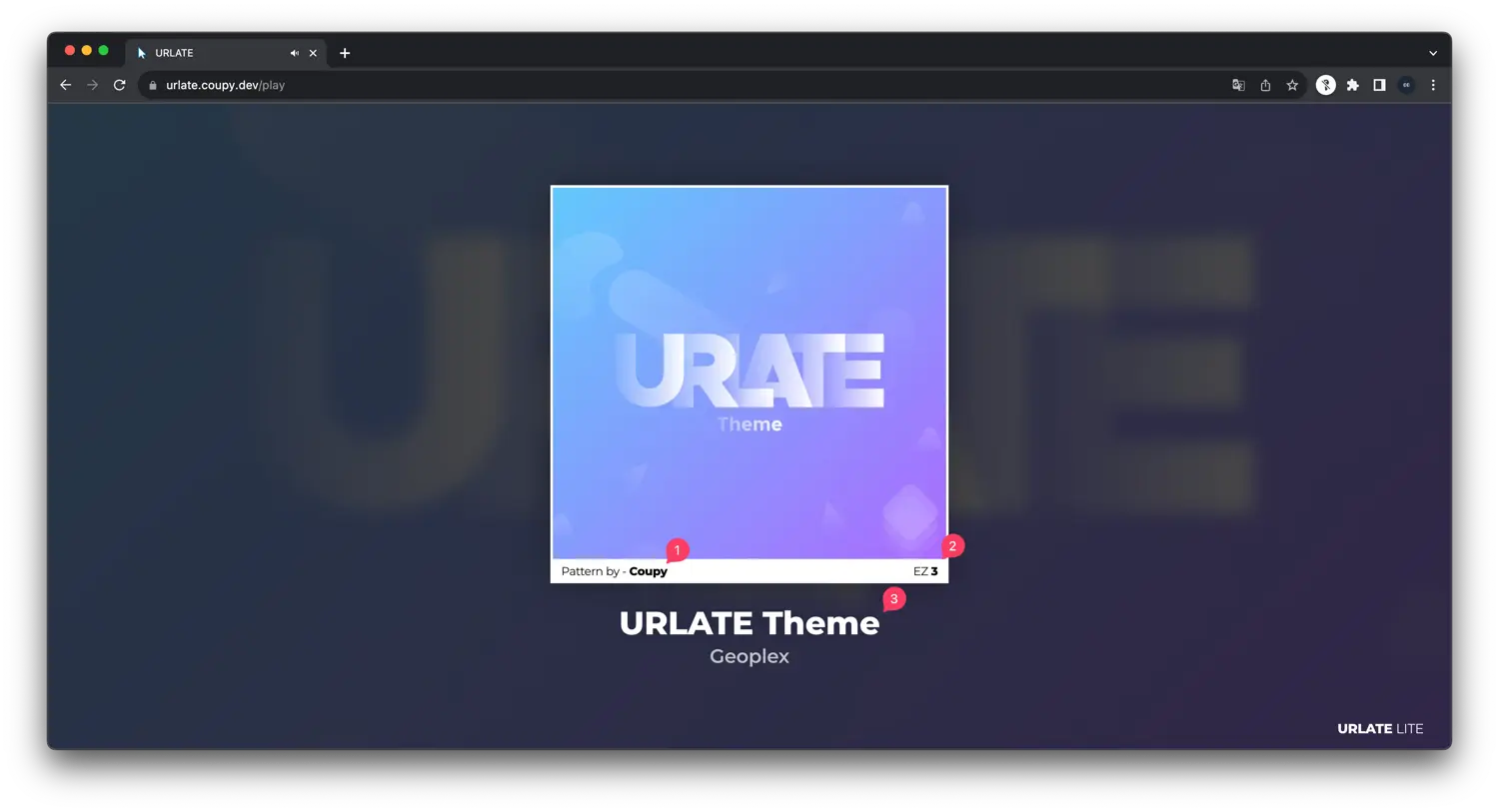
- Pattern artist
You can see the pattern artist of the selected track here. - Difficulty
Difficulty of the selected track will be shown here. - Title
Title and producer of the selected track will be shown here.
Gameplay screen
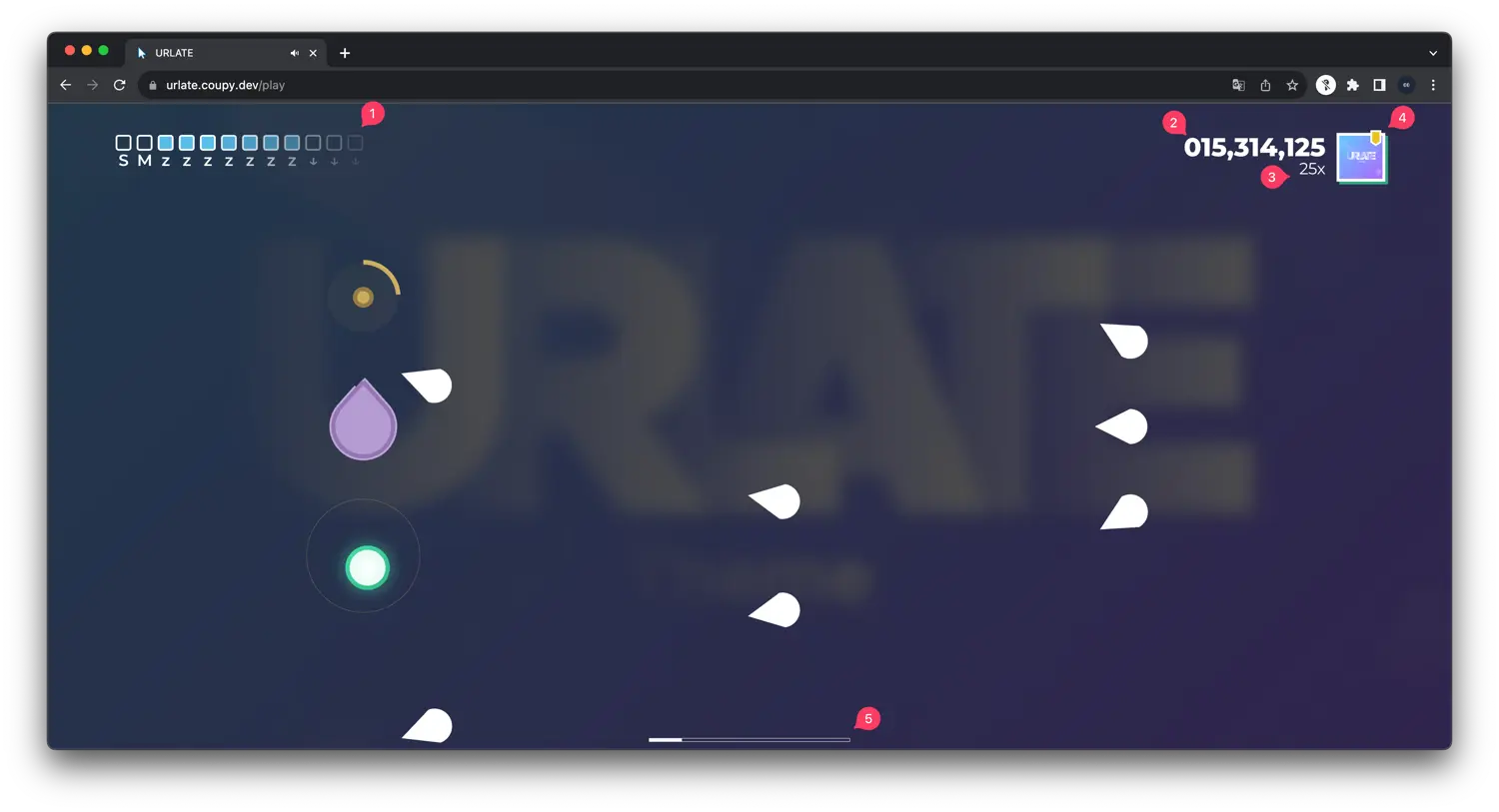
- Key overlay
The key overlay will represent the key you pressed. The color of the key overlay shows the judgement.
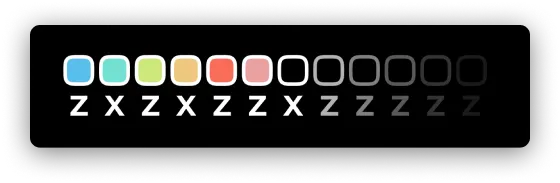
Colors representPerfect,Great,Good,Bad,Miss,Bullet,Nothingfrom the left. - Score
Your score will be shown here. - Combo
Your combo will be shown here. - Medal indicator
The medal you could get will be shown here. - Progress bar
The progress bar will show the progress of the track.
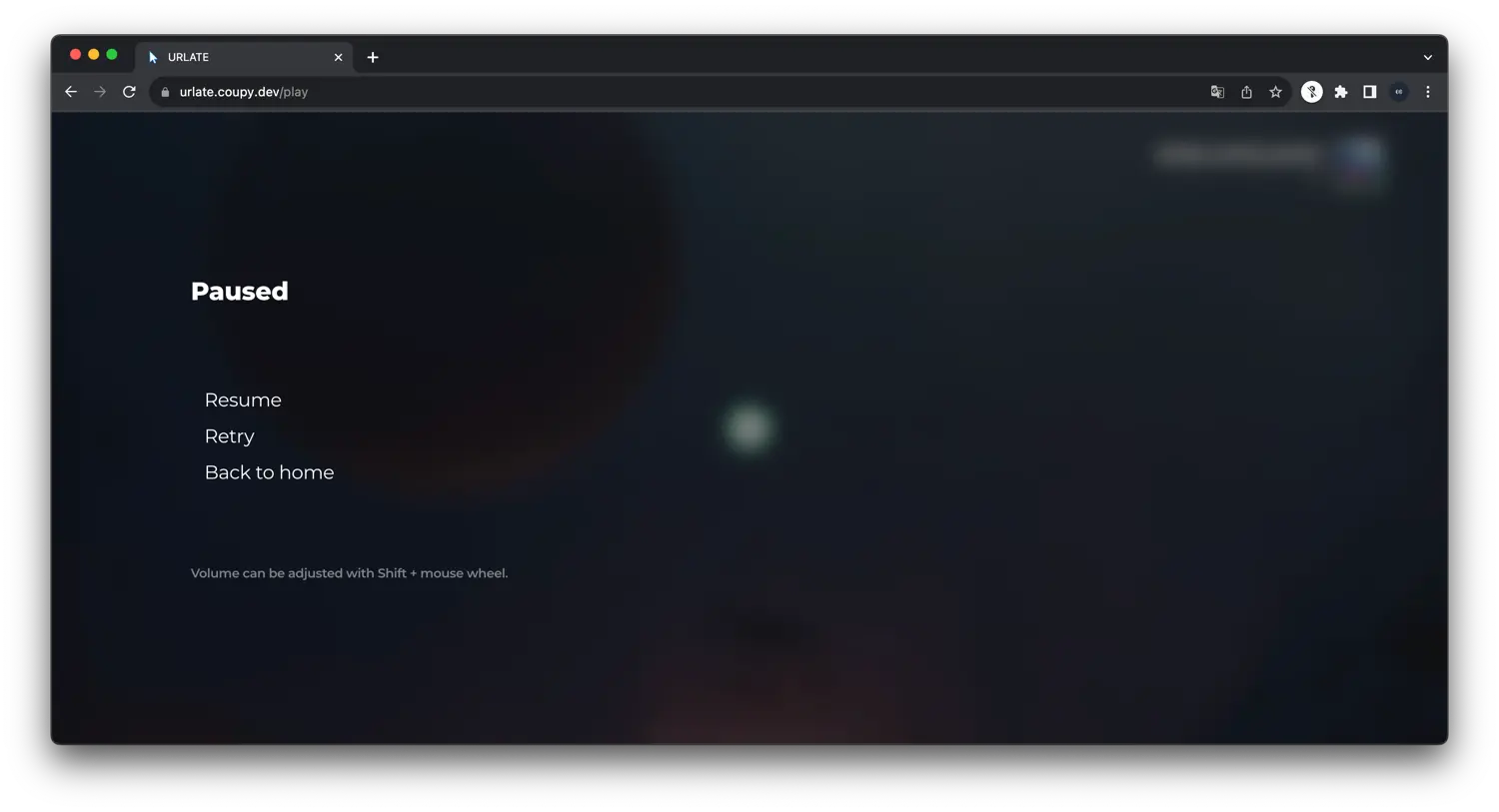
Pause screen
You can pause the game by pressing the Esc key.
Pressing the Esc key again will resume the game.
Result screen
You will see the result screen after you finish the track.
About more detailed information about the result calculation, please refer to the Calculation page.
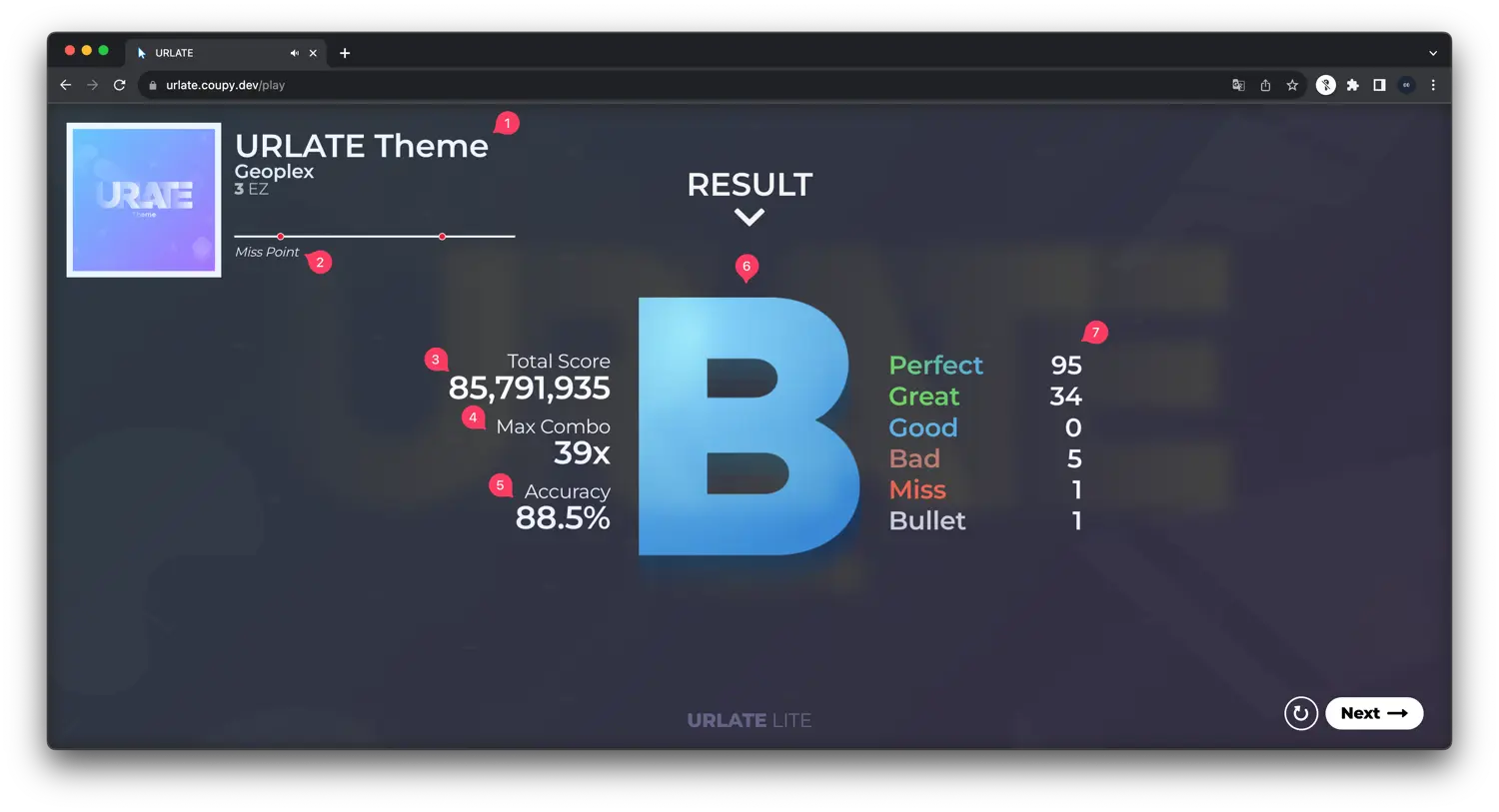
- Title
Title and producer of the selected track will be shown here. - Miss point
The point you missed notes or got shot by bullets will be shown here. - Total score
Your total score will be shown here. - Max combo
Your max combo will be shown here. - Accuracy
Your accuracy will be shown here.
The accuracy would be used to calculate the rating and the grade. - Grade
Your grade will be shown here.